Launch Ryujinx Canary once
The first launch creates folders that are needed for setup.
Legal setup guidance
Understand what keys and firmware are used for in Ryujinx Canary, where legally dumped prod.keys belong, and why this guide does not provide copyrighted files.
$ channel: canary
$ platforms: windows linux macos
$ source: ryubing releases
$ status: verify before download
Independent guide. No keys, firmware, ROMs, DLC or game files are hosted here.
These links point to verified Ryubing Canary release assets checked during implementation.
The first launch creates folders that are needed for setup.
Use the application menu instead of guessing hidden system paths.
Place the file in the system folder, then restart the emulator.
Use the Tools menu and restart after installation.
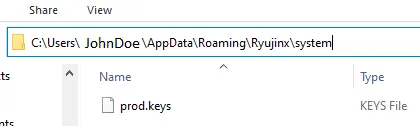
This screenshot from the Ryujinx setup documentation shows the intended system folder location for legally dumped prod.keys. It is included as placement context only; this site does not provide keys or firmware downloads.
Source: Ryujinx setup guideKeys are required for parts of emulator setup and game compatibility. You should only use keys legally dumped from your own Nintendo Switch. This site does not host prod.keys, title.keys or key archives.
Launch Ryujinx Canary once, open the Ryujinx folder from the application menu, then place legally dumped prod.keys in the system folder. Restart the emulator so the file can be detected.
Firmware should also come from a legal dump. After keys are in place, use the emulator Tools menu to install firmware from a valid XCI or ZIP source, then restart Ryujinx Canary.
Search demand for prod.keys and firmware is high, but a trustworthy page should not provide files or file-sharing links. The useful SEO angle is to explain what these files are for, where legally dumped files belong, how to restart after placement, and which symptoms indicate missing or outdated setup files.
Common mistakes include placing prod.keys in the wrong folder, using an outdated key file, installing firmware before keys are detected, or forgetting to restart the emulator. The page should help users diagnose these setup mistakes without encouraging piracy or hosting copyrighted material.
Searches for Ryujinx Canary prod keys and firmware are common, but providing those files would create legal and trust risks. A safer and more useful page explains what the files are used for, how legally dumped files fit into setup, and what errors users may see when files are missing, outdated or placed incorrectly.
When a setup error appears, check the basics in order: confirm the file name, confirm the folder, restart the emulator, verify firmware installation, then test one title. Do not start by replacing random files from the web. A structured diagnostic order helps users solve setup issues without introducing unsafe downloads.
Some setup problems come from mismatched or outdated dumped files. The page should explain that keys and firmware work together in the setup flow, but it should not provide file downloads. Users need to understand the relationship so they can troubleshoot their own legal dumps rather than searching for risky archives.
A keys and firmware page can still be useful without offering files. The safest language focuses on legally dumped files, folder placement, restart steps, and symptoms such as missing keys, firmware parsing errors or game launch failures. Avoid phrases that imply users can download copyrighted setup files from the site.
Use these references to verify release status, setup expectations and troubleshooting details before publishing download guidance.
No. This site does not provide prod.keys, title.keys, firmware, games, DLC or update files.
Open the Ryujinx folder from the app menu and place legally dumped prod.keys in the system folder.
The file may be missing, outdated, named incorrectly, or placed in the wrong folder. Restart the emulator after fixing it.
The concept is the same across Windows, Linux and macOS, but the folder path and file browser behavior can differ.
This guide does not recommend downloading keys from websites. Use legally dumped files from your own Nintendo Switch and avoid archives distributed through file-sharing pages.
The keys may be outdated, misplaced, named incorrectly, or the firmware source may be invalid. Restart Ryujinx Canary after fixing file placement.
No. Emulator builds do not include copyrighted keys, firmware, games, updates or DLC. Those must not be bundled with a download page.