Ryujinx Mods: Install, Organize and Troubleshoot Game Mods
Ryujinx mods work reliably when the archive is clean, the files are placed in the game-specific directory, the mod matches the installed game update and only one change is tested at a time. This guide covers the reusable workflow; it does not host games, firmware, keys, paid packs or a mod database.
Independent editorial guide. The illustrations are explanatory, not real Ryujinx screenshots.
Primary keywordRyujinx mods
Safest folderOpen from the game menu
Compatibility keyGame update and build ID
First testOne mod only
Safe Ryujinx Mod Installation Workflow
01
Check the source and archive
Use a reputable author page, maintained repository or documented community post. Read release notes and inspect the archive before extraction. A normal file mod should not require an unrelated executable or mystery installer.
02
Record the game and emulator versions
Note the title ID, installed game update and current Ryujinx or Ryubing Canary build. Version notes are part of the installation because many patches target one update or build ID.
03
Open the game-specific mod directory
Use the selected game's context menu to open its mod directory. This avoids typing a title ID incorrectly or copying files into the global emulator folder or another user profile.
04
Copy one clean mod folder
Extract the archive outside the destination, remove only unnecessary wrapper folders, then copy one clearly named mod folder. Keep the original archive and the last working version until testing succeeds.
05
Enable, restart and test
Enable only that mod, fully restart the title and test a repeatable scene. Add other changes one at a time and keep a short compatibility note for future game updates.
Treat every mod as a versioned change
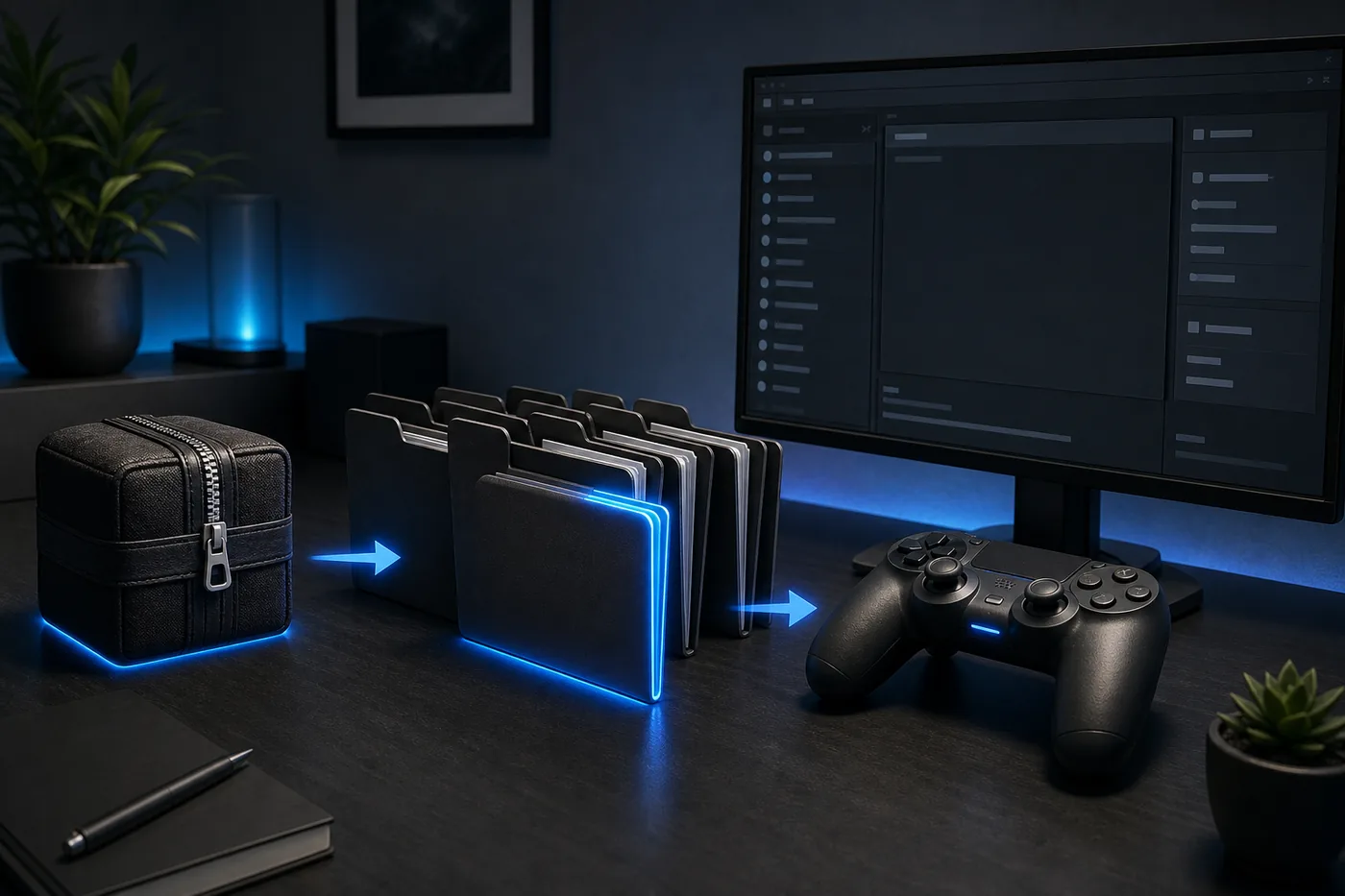
Editorial illustration, not a real emulator screen. Move from a reviewed archive to the correct game folder, then test one controlled change.
What Ryujinx Mods Can Change
A mod may replace assets, patch executable instructions, adjust graphics, alter frame pacing or add quality-of-life behavior. The installation can look similar even when the technical format differs, so the author's instructions and supported game update matter more than the folder name alone.
Graphics and texture replacements change visual assets.
ExeFS or patch-style mods change executable behavior.
RomFS-style mods replace or add game data.
FPS and resolution mods may depend on emulator settings.
Where the Ryujinx Mods Folder Is
Do not begin with a path copied from a random guide. Select the game in Ryujinx, open its context menu and use the option that opens the mod directory. The emulator resolves the correct title-specific location for the current user data folder, including portable installations.
A separate folder is used for each title ID.
Portable mode can move the user-data root.
The archive normally should not remain zipped.
A double wrapper folder can make a mod invisible.
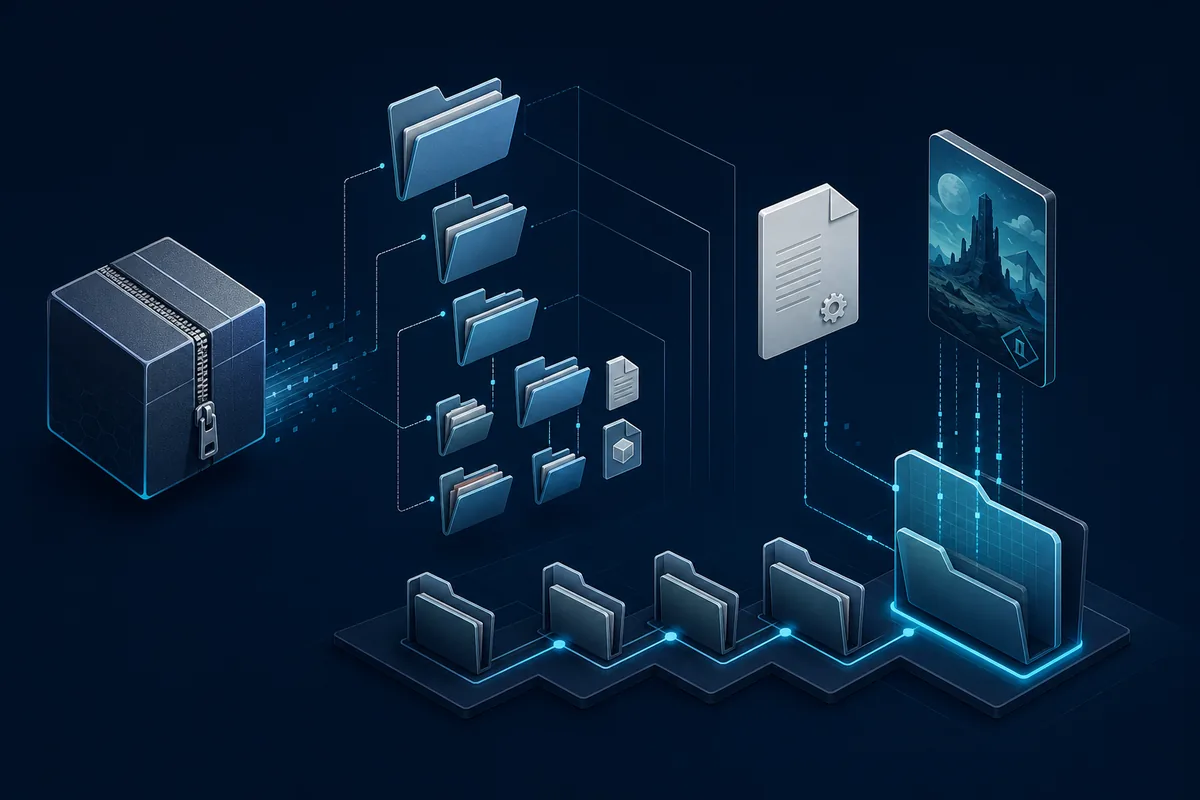
Editorial illustration, not a real emulator screen. Move from a reviewed archive to the correct game folder, then test one controlled change.
How to Check the Folder Structure
Open the extracted files and compare the first meaningful folders with the author's instructions. If the archive contains a project folder and then another identical folder, the outer layer may be packaging. Preserve technical folders such as romfs, exefs and patch directories exactly as supplied.
Extract to a temporary folder first.
Show file extensions before copying.
Avoid renaming technical subfolders.
Keep each mod in a distinct parent folder.
Symptom
Likely cause
First check
Mod not listed
Wrong folder or wrapper layer
Open directory from game menu
Listed but inactive
Unsupported update or build ID
Read release notes
Crash at launch
Conflict or damaged files
Disable every mod
Works partly
Missing dependency or setting
Review requirements
Match the Mod to the Game Update
A mod built for one update can be ignored, behave partly or crash another update. Record the game version before downloading anything. When a release provides several files, choose the one that explicitly matches the installed update and architecture rather than assuming the newest filename is correct.
Do not confuse emulator version with game update.
Build IDs can change after a game patch.
A newer mod is not universally compatible.
Keep the previously working file.
Enable, Disable and Update Mods Cleanly
Use the game's mod management view when available, then restart after changing active files. To update a mod, disable the old copy, back it up, remove duplicate versions and install the replacement into a clean folder. Similar names can hide two copies loading together.
Use descriptive folder names with versions.
Do not overwrite without a backup.
Remove stale duplicates before testing.
Retest the base game after updates.
Ryujinx Mods Not Working: Diagnostic Order
Troubleshoot from a clean baseline. Confirm the game launches with all mods disabled, then verify path, extraction, update support and dependencies. Enable one mod and reproduce the same scene. This separates installation errors from emulator, driver, save or game-specific problems.
Base game fails: solve setup first.
Mod absent: inspect path and nesting.
Listed but inactive: inspect compatibility.
Several mods fail: test conflicts one by one.
Editorial illustration. Diagnose version mismatch, conflicting packages and single-mod testing as separate states.
How to Judge a Mod Source
Prefer an identifiable author page, maintained repository, established mod platform or well-documented community post. Look for a changelog, supported updates, installation notes and issue reports. Avoid downloads that bundle games, keys, firmware or aggressive wrappers.
Read recent comments or issue reports.
Reject unexpected executables.
Keep downloads separate from active mods.
Back up saves before sensitive changes.
Ryujinx Mods vs Cheat Codes and 60 FPS Patches
Use this page for the general mod folder and testing workflow. Cheat codes use version-sensitive runtime instructions and belong in the dedicated cheat guide. A 60 FPS patch has extra frame pacing, physics and performance checks, so use the focused 60 FPS guide.
General installation: this guide.
Runtime codes: cheat code guide.
Frame-rate patches: 60 FPS guide.
Graphics options: SSAA settings guide.
Related Ryujinx Setup Guides
Use the focused guide when your task is a frame-rate patch, cheat code, graphics setting or compatibility check.
Version freshness checked on 2026-07-16. Ryubing Canary 1.3.337 remains the verified release tag used by this site; always recheck the release page before updating.
Open the selected game's mod directory from its context menu, extract the mod outside that folder, copy the correct folder, enable one mod and restart the game.
Where is the Ryujinx mod folder?
Open it from the selected game's context menu because the exact user-data root can differ between normal and portable installations.
Why is my Ryujinx mod not showing?
The usual causes are the wrong title directory, an archive left zipped, an extra wrapper folder or an unsupported structure.
Why does a listed mod not work?
Check the installed game update, build ID, dependencies and conflicts. Disable every other mod and test the target mod alone.
Can I use several Ryujinx mods together?
Yes, but add them one at a time. Mods that replace the same files or patch the same code can conflict.
Do Ryujinx mods include games, firmware or prod.keys?
No. Legitimate instructions should not bundle those files. Use system and game content legally obtained from hardware you own.