Open the save folder from Ryujinx
Right-click the game in Ryujinx Canary and use the user save directory option when available. This avoids guessing hidden system paths.
Save management guide
Use this guide when you need to find Ryujinx Canary saves, back them up before an update, move them to another PC or Steam Deck, or restore a save without breaking your user data folder.
$ target: game save folder
$ method: open from Ryujinx
$ backup: copy whole folder
$ restore: close emulator first
This page covers saves only. It does not host keys, firmware, ROMs, updates, DLC or game files.
Right-click the game in Ryujinx Canary and use the user save directory option when available. This avoids guessing hidden system paths.
Do not copy or replace save files while the title is running. Close Ryujinx Canary if you are restoring a backup.
Keep every file in the folder together. A partial copy can lose metadata, slots or profile-specific data.
Use the game name, platform and date so you can tell which save belongs to which build or device.
After restoring, launch one game and confirm it loads before replacing more saves.
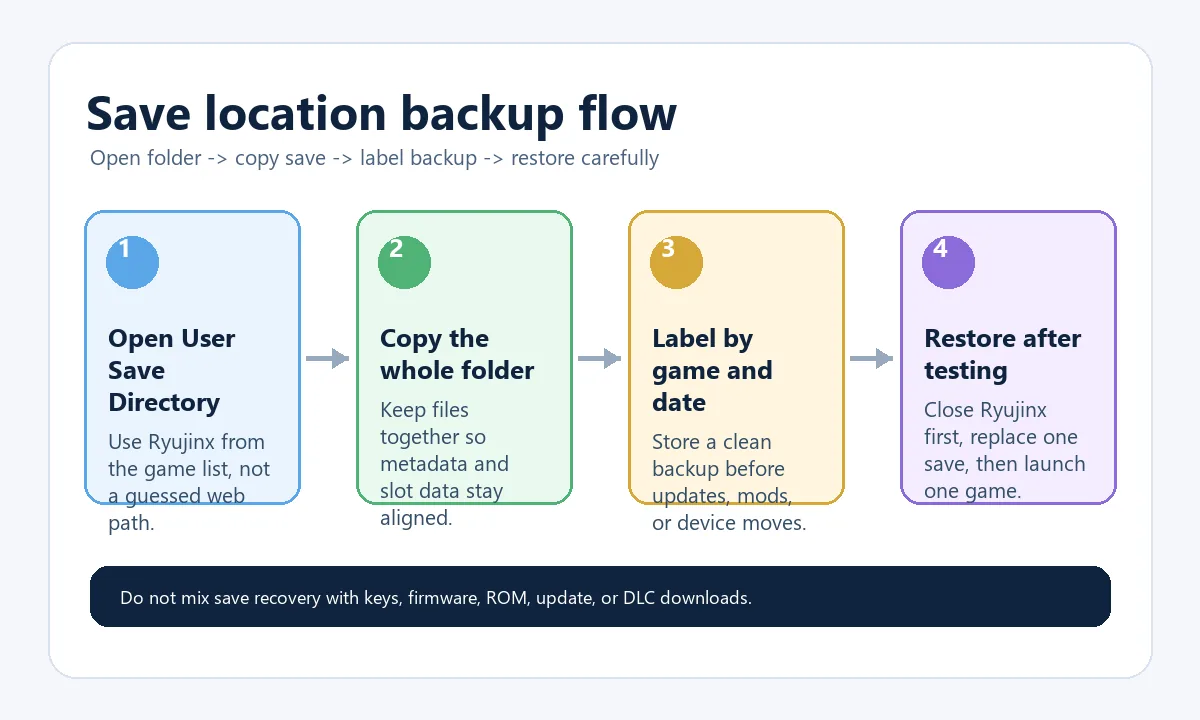
The safest workflow is to open the save directory from Ryujinx, copy the entire folder while the emulator is closed, and restore one save at a time.
The practical answer is to open the save directory from inside Ryujinx Canary instead of relying on one hard-coded path from a forum post. Ryujinx stores user data in an application data folder, and the exact path can vary by operating system, portable setup, launcher shortcut and package type. For a specific game, the in-app Open User Save Directory action is the safest route because it jumps to the folder Ryujinx is actually using for that title. If you need to change the Ryujinx save location, create and verify the target folder from the active setup first; do not guess a path and move a save while the emulator is running.
Use these as orientation only. The in-app folder action should still win when it is available, because it reflects your active profile and current build.
| Platform | Where to start | What to verify |
|---|---|---|
| Windows | Use Ryujinx game list -> Open User Save Directory | Confirm the folder belongs to the same game and user profile. |
| Linux | Open from the running Ryujinx package or AppImage | Check whether a custom launcher changes the user data path. |
| Steam Deck | Test Desktop Mode first, then the same Game Mode shortcut | Keep the launch route consistent before copying saves. |
| macOS | Use the app menu or game context action | Hidden Library folders can make manual path guessing risky. |
Canary builds move quickly, so backing up saves before an emulator update is a simple safety habit. A normal emulator update should not require deleting saves, keys, firmware or game folders, but a backup protects you from accidental folder replacement, profile confusion or testing a portable build in the wrong location. Copy the whole game save folder to a separate backup directory before replacing the application files.
Save transfer is safest when the source and target both have a clean Ryujinx setup first. Install or launch Ryujinx Canary on the target device, confirm the same game appears, open that game's save directory, close the emulator, then copy the backed-up save folder into the target location. If you move directly into a guessed folder, you may place the save under the wrong user, title ID or package path.
Close Ryujinx Canary before restoring. Rename the current save folder instead of deleting it, paste the backup folder, then launch the game once. If the game does not detect the save, restore the previous folder and recheck whether you copied the right title, user account and directory level. Do not fix a save location problem by downloading save packs, ROMs, DLC or firmware from random pages.
| Symptom | Likely cause | Next check |
|---|---|---|
| Save does not appear | Wrong title or user save folder | Open the save directory from the exact game entry again. |
| Game starts from the beginning | Backup pasted one level too high or too low | Compare folder depth against the original target folder. |
| Save appears but crashes | Incompatible game update, mod or damaged save | Test the original folder and remove unrelated changes. |
| Only Steam Deck path fails | Different launch route or profile | Compare Desktop Mode and Game Mode paths. |
Keep save recovery separate from other setup files. Saves are not prod.keys, firmware, ROMs, game updates, DLC or shader caches. Copying unrelated files while troubleshooting makes the problem harder to diagnose and can create legal or privacy risks. This site only explains folder handling and does not provide copyrighted game content or console setup files.
Before moving any Ryujinx save, confirm four things: the game is closed, the folder was opened from the correct game entry, the backup has a clear date label, and the original target folder is preserved. Those four checks solve most save-location mistakes without reinstalling the emulator or changing legal setup files.
Use official Ryubing references for setup context and keep save handling separate from copyrighted files.
Open Ryujinx Canary, right-click the game, and use the user save directory option when available. It is safer than guessing a hidden folder path.
Yes. Copy the full save folder before replacing app files, especially when testing a fast-moving Canary build.
Yes, but first create the target save folder from Ryujinx on the Steam Deck, close the emulator, then copy the backed-up folder into that exact location.
The save may be in the wrong title folder, wrong user folder or wrong directory depth. Open the directory from the same game entry again and compare the folder structure.
No. Saves are user game progress. Keys, firmware, ROMs, updates and DLC are separate and are not hosted or provided by this site.
Do not do that. Close the game and preferably close Ryujinx Canary before copying or restoring save files.
Open the save directory from the active Ryujinx game entry, close the emulator, back up the original folder, and move or restore one complete save folder at a time. Verify the target by launching the same game before deleting the original backup.