Confirm the device outside Ryujinx
Test the same controller in Windows, Linux, SteamOS or another app before changing emulator settings. If the operating system cannot see it, Ryujinx Canary will not fix that layer.
Controller troubleshooting
Use this guide when Ryujinx Canary sees no controller, maps the wrong buttons, loses Steam Deck input, or stops detecting controls after an update. Work through device detection, player slots, controller type, Steam Input and rollback checks in a clean order.
$ channel: canary
$ platforms: windows linux macos
$ source: ryubing releases
$ status: verify before download
Independent guide. No keys, firmware, ROMs, DLC or game files are hosted here.
Test the same controller in Windows, Linux, SteamOS or another app before changing emulator settings. If the operating system cannot see it, Ryujinx Canary will not fix that layer.
Open the input settings, enable Player 1, choose the correct input device and controller type, then save the profile before testing a game.
Avoid changing several profiles at once. Map buttons, sticks and triggers for the selected device, then test one title before adding more controllers.
On Steam Deck or when launching through Steam, confirm whether Steam Input is presenting a virtual gamepad. Fix that layer before blaming Ryujinx Canary.
If controls broke immediately after updating, keep your current setup folder and test the previous working build to identify a Canary regression.
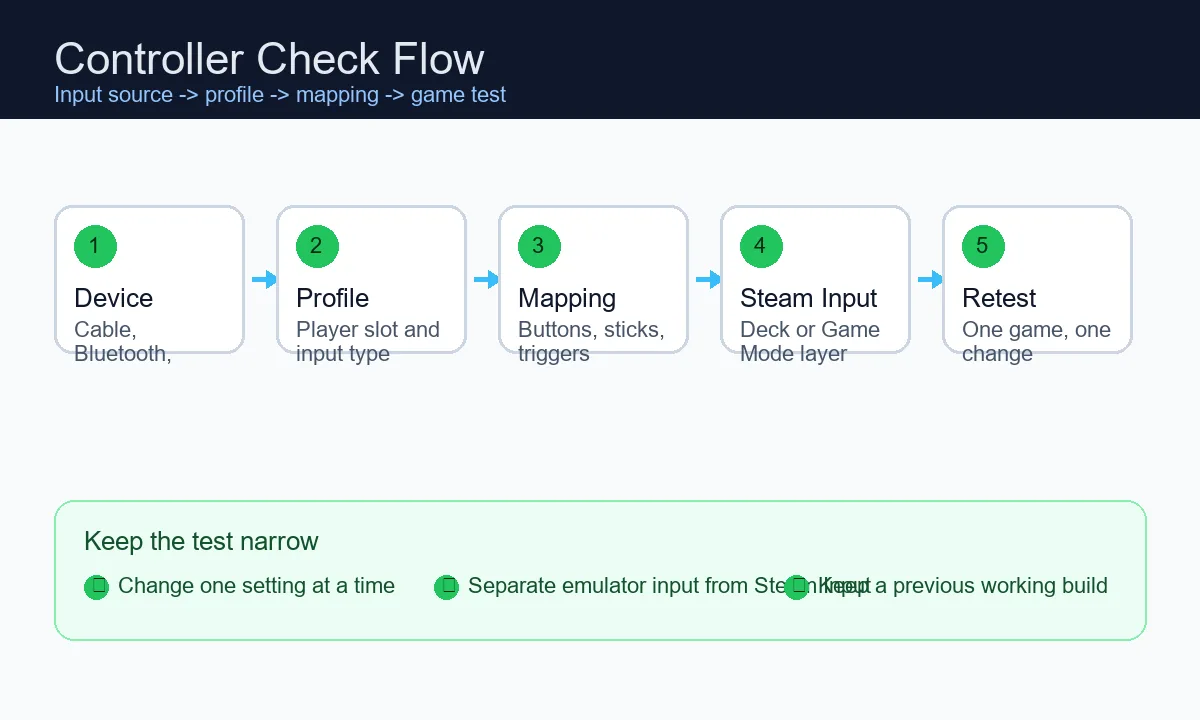
The fastest fix is usually not a random setting change. Verify the controller layer, then the Ryujinx profile, then Steam Input or rollback only after the basic mapping is saved.
When a Ryujinx controller not working problem appears in Canary, split it into five layers: the physical device, the operating system, the Ryujinx input profile, Steam Input or another launcher layer, and the specific game. Do not change graphics, firmware, keys and controller settings in the same test. A clean input test uses one controller, one player slot, one game and one changed setting at a time.
Different controller symptoms point to different fixes. This table keeps the diagnosis practical and prevents unnecessary reinstall attempts.
| Symptom | Likely layer | Best next action |
|---|---|---|
| Only keyboard options appear | Device detection | Reconnect the controller, test wired mode, restart Ryujinx Canary, then reopen input settings. |
| Controller appears but buttons do nothing | Profile mapping | Enable Player 1, pick the device again, set controller type and save the mapping. |
| Steam Deck works in Desktop Mode but not Game Mode | Steam Input | Use the Steam virtual gamepad layer, check the layout, then retest through the same launch path. |
| One game works and another does not | Game profile or title behavior | Test default profile first, then add a per-game profile only if needed. |
| Controls failed after updating Canary | Build regression or reset profile | Test the previous build and keep a copy of the working input profile. |
On Windows, first decide whether the controller is exposed as XInput, DirectInput or a Bluetooth device with partial support. Xbox controllers are usually simplest. PlayStation, Switch Pro and third-party pads may need a stable cable, a wrapper, or Steam Input to present a virtual Xbox-style controller. If Ryujinx Canary detects the controller but inputs do not register, save the profile again after selecting the input device. If only one trigger or stick works, remap from scratch instead of editing an old profile.
Linux and Steam Deck users have an extra launch-path variable. A controller may work in desktop mode but fail after the emulator is added to Steam, or it may work in Game Mode only when Steam Input supplies a virtual gamepad. Test the AppImage or archive build in desktop mode first. Once Ryujinx Canary opens and your setup files are valid, add the app to Steam and keep the same launch route while checking input. Changing launch mode, controller layout and emulator profile in the same pass makes the result hard to read. If the Ryujinx controller is not working on Steam Deck, test the physical or virtual gamepad in Desktop Mode first, then repeat the same profile in Game Mode.
Old input profiles can survive updates, device swaps and launcher changes. If Ryujinx Canary shows a controller but mapping is inconsistent, rebuild the Player 1 profile from a simple baseline. Choose the input device, choose a controller type such as Pro Controller when appropriate, map buttons and sticks, save, close the settings window, then launch one game. Do not configure Player 2, motion, alternate layouts or per-game profiles until Player 1 works reliably.
Canary builds are useful because they move quickly, but fast updates can also reset assumptions. If controls stopped working right after an update, treat it as a comparison problem. Keep the new build, restore or launch the previous build in a separate folder, and test the same profile with the same controller. If the old build works and the new build does not, document the build number, controller model, operating system and launch path before changing more settings.
| Check | Why it matters |
|---|---|
| Previous build still works | The issue may be a Canary regression or changed input behavior. |
| Both builds fail | The problem is more likely device pairing, Steam Input, OS permissions or a damaged profile. |
| Only one launch shortcut fails | The shortcut or launcher layer is changing the input device seen by Ryujinx Canary. |
Controller troubleshooting should stay separate from setup-file troubleshooting. Missing keys, firmware problems or game directory mistakes can prevent a game from starting, but they do not explain why a controller is absent from the input device list. If the emulator cannot launch a game at all, finish the install and keys/firmware checks first. If the game launches and only input fails, stay inside the controller workflow. This site does not host keys, firmware, ROMs, DLC or game files.
These references help verify official setup context and common input troubleshooting patterns.
The controller is probably not visible to Ryujinx Canary yet. Reconnect it, test wired mode, confirm the operating system sees it, restart the emulator and select the input device again in Player 1 settings.
The device may be selected but not mapped or saved to the active player profile. Rebuild Player 1, set the controller type, map buttons and save before launching a game.
Check whether the issue happens in Desktop Mode, Game Mode or only through a specific launcher. Steam Input can present a virtual gamepad that must be selected inside Ryujinx Canary.
Yes. Canary builds can change quickly. If input fails immediately after updating, compare with the previous working build and keep your old profile until the cause is clear.
Usually no. Start with device detection, Player 1 profile, mapping and Steam Input checks. Reinstalling is a last resort after you have backed up your configuration.
No. Keys and firmware can affect whether games boot, but they do not make a controller appear in the input device list. Keep those troubleshooting paths separate.
Start by checking whether the operating system sees the device, then select it again in Player 1, choose the correct controller type, save the mapping, and test one game. On Steam Deck, repeat the check through the same Desktop Mode or Game Mode launch path.