Start at native resolution
Launch the same game, same save point and same Canary build at 1x native scale. If the game is already unstable, do not raise SSAA yet.
Graphics settings guide
SSAA-style resolution scaling can make Ryujinx Canary look much cleaner, but it is also one of the fastest ways to overload the GPU or hide a separate compatibility problem. This guide explains what to test first, when to raise resolution scale, when to return to native scale, and how to keep graphics troubleshooting separate from keys, firmware, game files and Canary build regressions.
$ scale: start at 1x
$ test: same scene
$ raise: one step
$ rollback: if unstable
No keys, firmware, ROMs, updates, DLC or game files are hosted here.
Launch the same game, same save point and same Canary build at 1x native scale. If the game is already unstable, do not raise SSAA yet.
Use a menu, opening area, race start or camera angle you can revisit. A repeatable scene is more useful than judging a random first minute.
Move from native to 2x before trying higher values. Keep every other graphics option unchanged during this pass.
Check FPS feel, frame pacing, fan noise, temperature and power draw. A sharper image is not worth a title that becomes unstable.
If the result is worse, return to native scale before changing backend, VSync, anisotropic filtering or shader cache behavior.
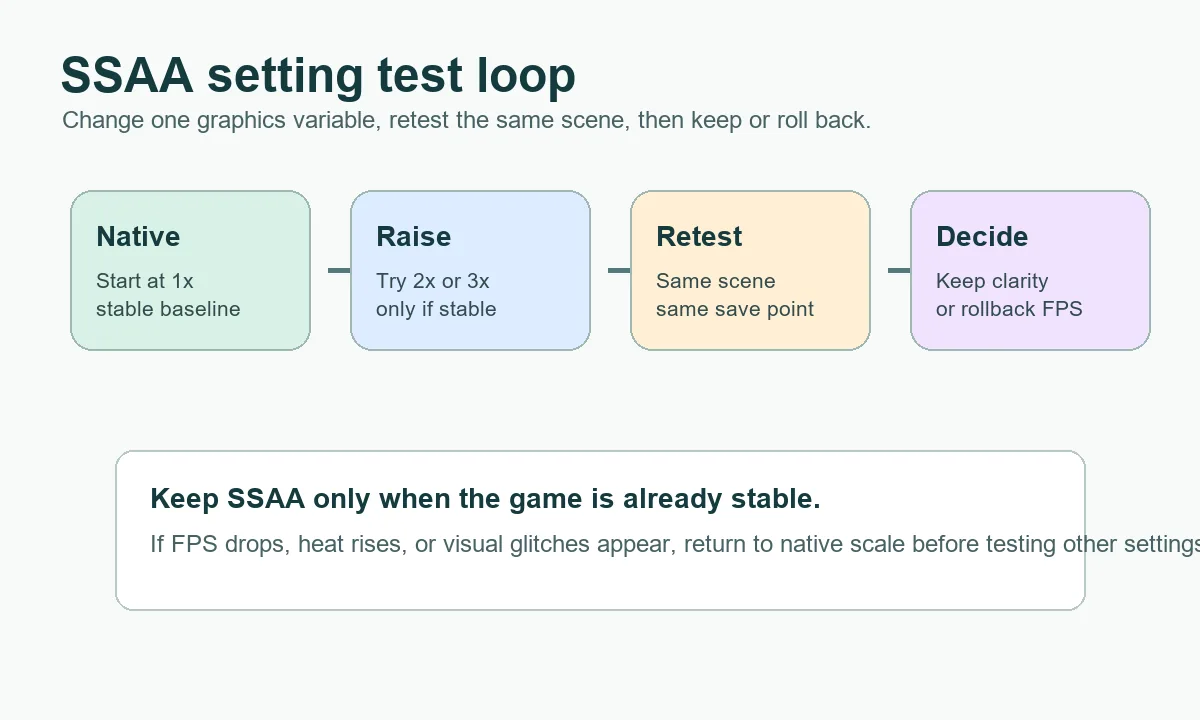
SSAA testing works best when the game, build, scene and graphics profile stay fixed. Raise one step, retest, then decide whether the clarity gain is worth the performance cost.
When users search for Ryujinx SSAA, they usually mean rendering the game above native resolution and then displaying it at the screen size they actually use. In practice, this overlaps with resolution scale. A higher scale can reduce jagged edges, make thin lines cleaner and improve distant detail. It does not replace a broken game profile, missing setup files, bad dump, outdated driver or Canary regression. Treat SSAA as a clarity setting after the game already boots and behaves predictably.
SSAA is worth testing after the game is already playable at native scale. It is most useful for games with clear jagged edges, small text, fine UI lines or distant geometry that looks unstable. It is less useful when the game is CPU-bound, shader compilation is still happening, the GPU is already near its limit or the title has unresolved rendering bugs. If a title crashes, shows a black screen or fails before gameplay, fix the baseline first and use the compatibility guide instead.
| Situation | SSAA decision | Reason |
|---|---|---|
| Game is smooth at native scale | Try 2x | There is enough headroom to test image quality. |
| Game stutters only during first run | Wait and retest | Shader compilation can mislead the result. |
| GPU fans or temperature rise quickly | Stay native | The extra pixels may cost too much. |
| Black screen or boot failure | Do not test SSAA yet | That is not a clarity problem. |
| Only one game has glitches | Use per-game testing | A global graphics change can hurt other titles. |
The safest order is baseline first, SSAA second, then smaller graphics refinements. Start with default graphics settings and native scale. If the baseline is stable, raise resolution scale one step and retest. Only after that should you compare anisotropic filtering, VSync, shader cache behavior or per-game overrides. Changing several options together makes it impossible to know whether SSAA helped, whether another option caused the problem, or whether the Canary build changed behavior.
A higher number is not automatically better. Native scale is the most reliable baseline and often the right choice on handhelds, older GPUs and laptops. 2x is the first useful quality test on a desktop GPU with headroom. 3x and higher should be treated as optional experiments for titles that are already stable. If a game becomes uneven, hotter or visually glitchy after raising scale, the best fix is usually to return to the last stable value rather than changing unrelated settings.
| Scale | Best fit | Watch for |
|---|---|---|
| 1x native | First launch, Steam Deck, laptops, unstable games | Image may look softer but troubleshooting stays clean. |
| 2x | Stable games with GPU headroom | Good clarity gain with a manageable cost on many systems. |
| 3x | Light games or strong desktop GPUs | Higher heat, power draw and frame pacing risk. |
| 4x or higher | Screenshots or very light titles | Not a default recommendation for normal play. |
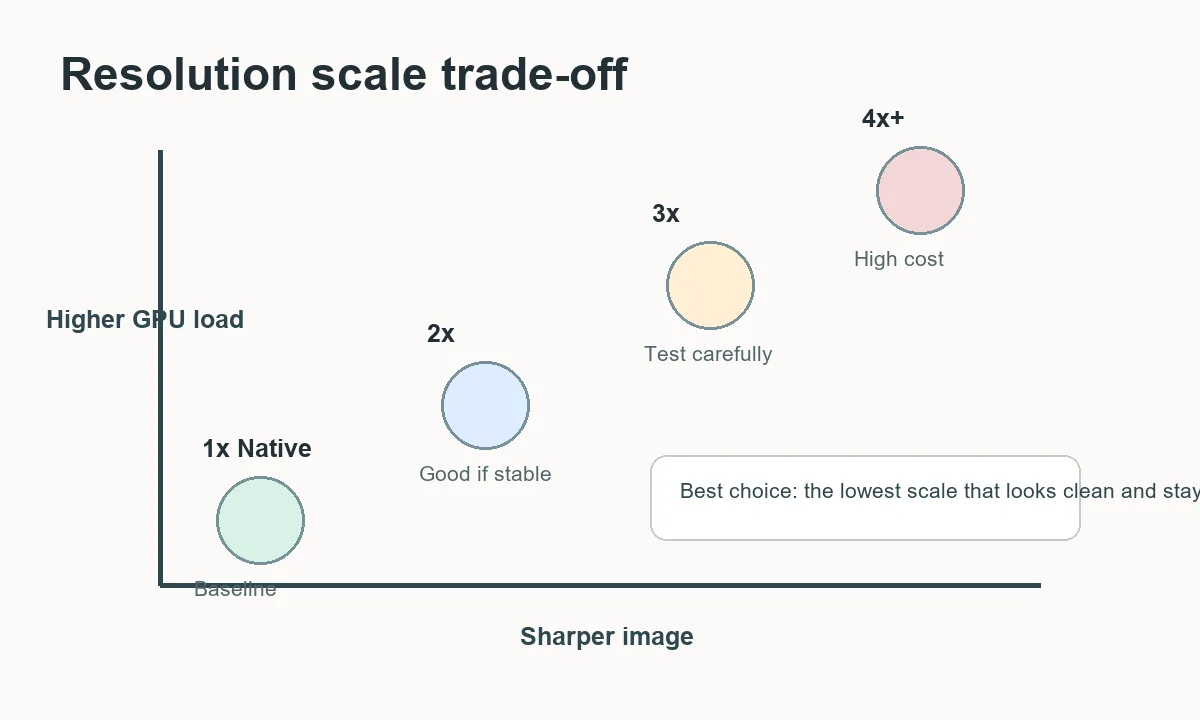
Canary builds move quickly, so a graphics setting that worked in one build may feel different in the next. Before blaming SSAA, compare the current build with the previous working build using the same game, backend, save point and scale. If both builds behave badly at the same scale, the issue is probably local settings, driver load or the game profile. If the older build works and the newer build fails, record the build numbers and keep the previous working setup available while you test a rollback.
SSAA does not solve missing prod.keys, firmware setup errors, broken game dumps, ROM sources, update files or DLC problems. This site does not host copyrighted keys, firmware, games, updates or DLC. If a title does not boot, finish the legal setup path first. If it boots but one scene looks jagged or blurry, then SSAA and resolution scale become useful settings to test.
For most users, the practical answer is simple: keep native scale while installing, updating, adding games or diagnosing crashes. Try 2x only after the title is stable. Save 3x or higher for light games or screenshots. If a Canary update changes performance, compare builds before changing the whole graphics profile. Good SSAA testing is conservative because it protects your ability to tell whether a problem came from the game, the build, the driver or the setting itself.
Use official Ryubing references for release history, setup context and troubleshooting boundaries.
In most user discussions, yes: SSAA usually means rendering above native resolution through the resolution scale setting, then displaying the result at normal screen size.
Start with native 1x. If the game is stable, try 2x before testing higher values.
No. A black screen usually points to backend, driver, setup, game dump or build behavior. Return to native scale and troubleshoot the baseline.
No. SSAA usually costs performance because the GPU renders more pixels. It may improve clarity, not speed.
Use native scale first. Handheld power and thermals make higher scales harder to justify unless the game is very light.
Use per-game testing when only one title needs it. A global high scale can make other games slower without helping them.