Make a baseline first
Launch the game without mods and note the Ryujinx Canary build, game update version, graphics backend and average performance.
Mods and frame-rate testing
Use this guide when a 60 FPS mod, TOTK-style performance patch, exefs folder or romfs override works for one Ryujinx Canary build but breaks another. The goal is to install one mod at a time, keep a clean baseline, and avoid confusing a mod problem with a Canary regression.
$ target: one game
$ mod type: exefs or romfs
$ test: baseline first
$ rollback: keep a clean copy
Independent guide. No games, keys, firmware, DLC, updates or paid mod files are hosted here.
Launch the game without mods and note the Ryujinx Canary build, game update version, graphics backend and average performance.
Use the game-specific mod folder from Ryujinx instead of guessing a global folder or dropping files beside the emulator executable.
Keep the downloaded mod structure intact. exefs and romfs content should stay inside the correct mod folder, not mixed into the game dump.
Use the same save point, camera angle and graphics settings so the 60 FPS result is comparable to the baseline.
If animations, physics, cutscenes or crashes get worse, remove the mod folder and confirm the clean baseline still works.
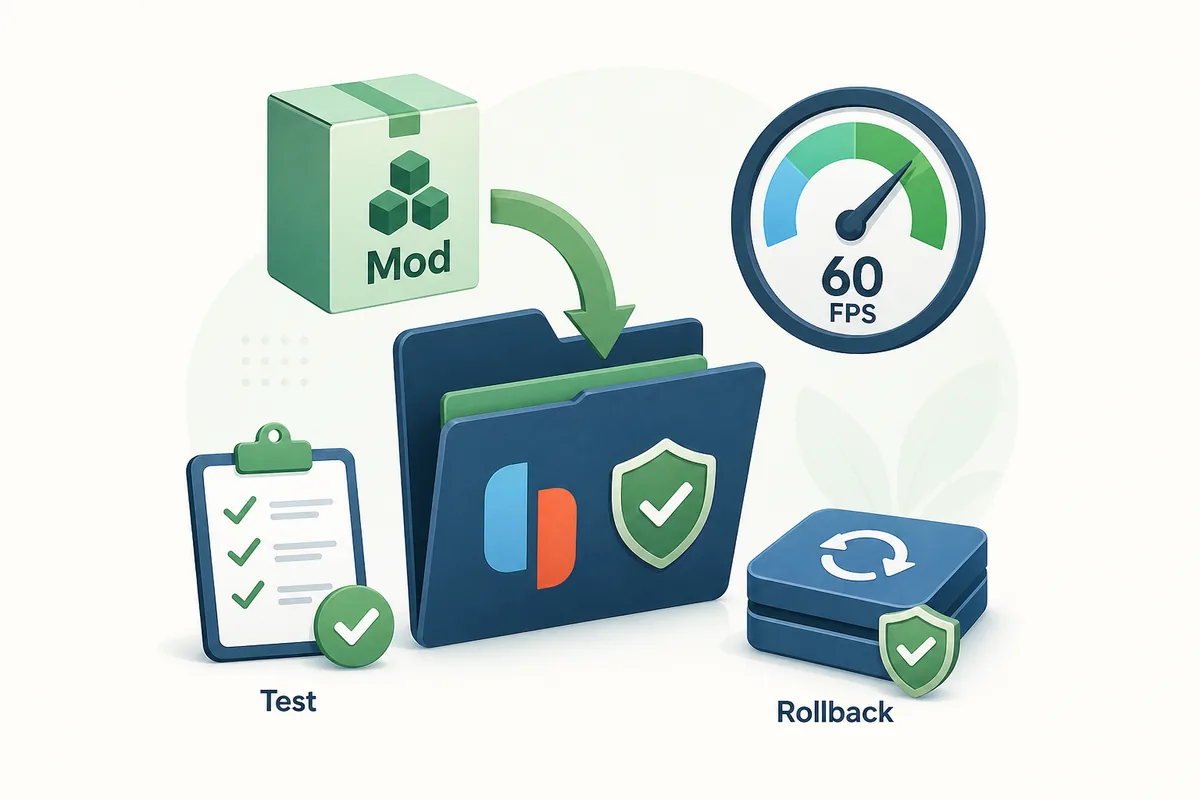
This editorial illustration shows the safe pattern: keep the mod package separate, test one change, and keep a rollback copy. It is not a real game screenshot or official Ryujinx interface.
A Ryujinx 60 FPS mod usually changes game code, timing, animation limits, or rendering behavior for one specific title and one specific game update. It is different from changing resolution scale, VSync, graphics backend or shader cache. That difference matters because a mod can make a game feel smoother while also breaking cutscene timing, physics, menus, audio sync or scripted events. Treat every 60 FPS patch as a per-game experiment, not a universal emulator setting.
General game compatibility pages answer whether a title boots, crashes or has graphics issues. A 60 FPS mod page answers a different intent: where to place the mod, how to keep exefs and romfs structure intact, how to test performance, and how to remove the patch if it causes timing problems. That is why this page is separate from the compatibility guide while still linking back to it for baseline testing.
| Search intent | Best page fit | Why |
|---|---|---|
| ryujinx 60 fps mod | New mod setup guide | The reader needs placement, testing and rollback steps. |
| totk 60 fps mod ryujinx | Section inside this page | The keyword is game-specific, so it supports examples without becoming a single-game download page. |
| ryujinx game compatibility | Existing compatibility page | The reader needs broader boot, graphics and regression checks. |
| ryujinx firmware download | Existing keys/firmware page or no action | That intent overlaps legal setup boundaries and should not be mixed with mods. |
Most mod issues come from folder structure, not from Ryujinx Canary itself. Open the game-specific mods directory from Ryujinx, then place a single named mod folder inside it. If the mod contains exefs or romfs folders, those folders should stay inside that named mod folder. Do not copy loose files into random emulator folders, and do not merge several downloaded mods into one unlabeled folder unless the mod author explicitly designed it that way.
| Folder or file | What it usually means | Safe handling |
|---|---|---|
| exefs | Executable/code patch content | Keep it inside the named mod folder and test the exact game update it targets. |
| romfs | Asset or file replacement content | Keep the structure intact so Ryujinx can resolve paths correctly. |
| README or release note | Version and install context | Read it before assuming the mod supports your game update. |
| Old mod folder | Previous patch state | Move it out before testing a new 60 FPS patch. |
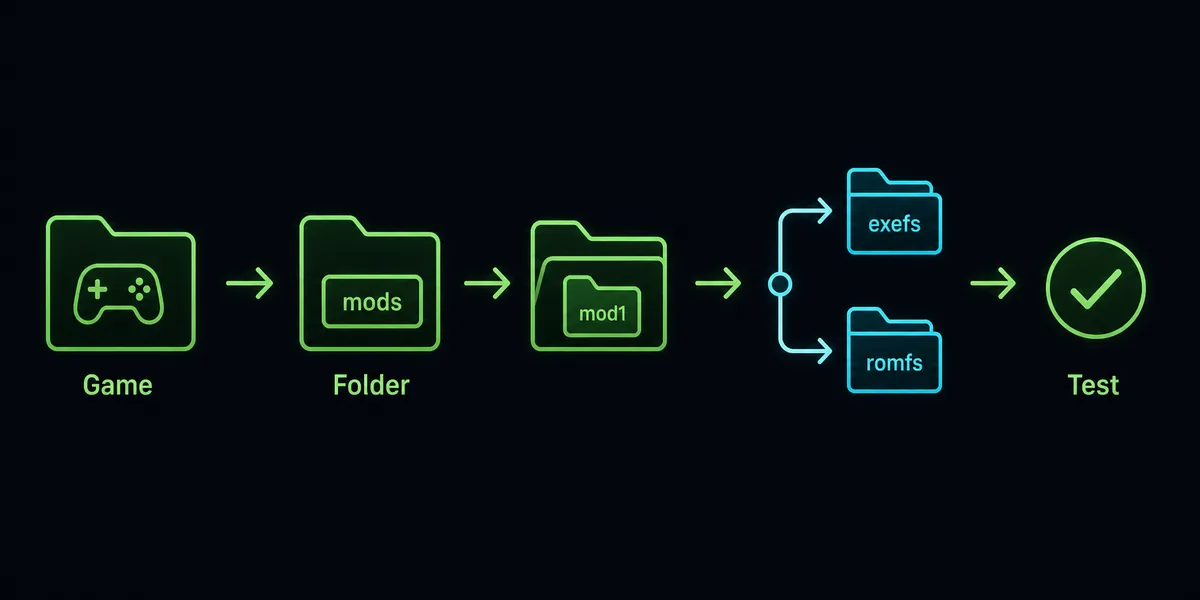
Many searches mention TOTK because large open-world games make frame-rate patches attractive. The same caution applies to any title: match the mod to the exact game update, test a clean baseline first, and avoid stacking FPS, graphics, resolution and cheat-style patches in one run. If the game runs better but menus, cutscenes or physics become unstable, the patch may be wrong for that version even if the emulator is working correctly.
A good test compares one modified run against one clean run. Use the same build, same graphics backend, same resolution scale, same save point and the same gameplay segment. If you change the emulator build, game update and mod at the same time, you cannot tell which variable caused the result.
| Test variable | Keep fixed | Decision rule |
|---|---|---|
| Mod enabled vs disabled | Build, save point, graphics settings | Keep the mod only if it improves the same scene without new timing issues. |
| New Canary build | Game update and mod folder | If the mod worked before but fails now, compare with the previous build. |
| Game update version | Canary build and graphics settings | Use only mods that mention the same update target. |
| Resolution scale or SSAA | Mod folder and build | Tune graphics after the mod passes a default baseline. |
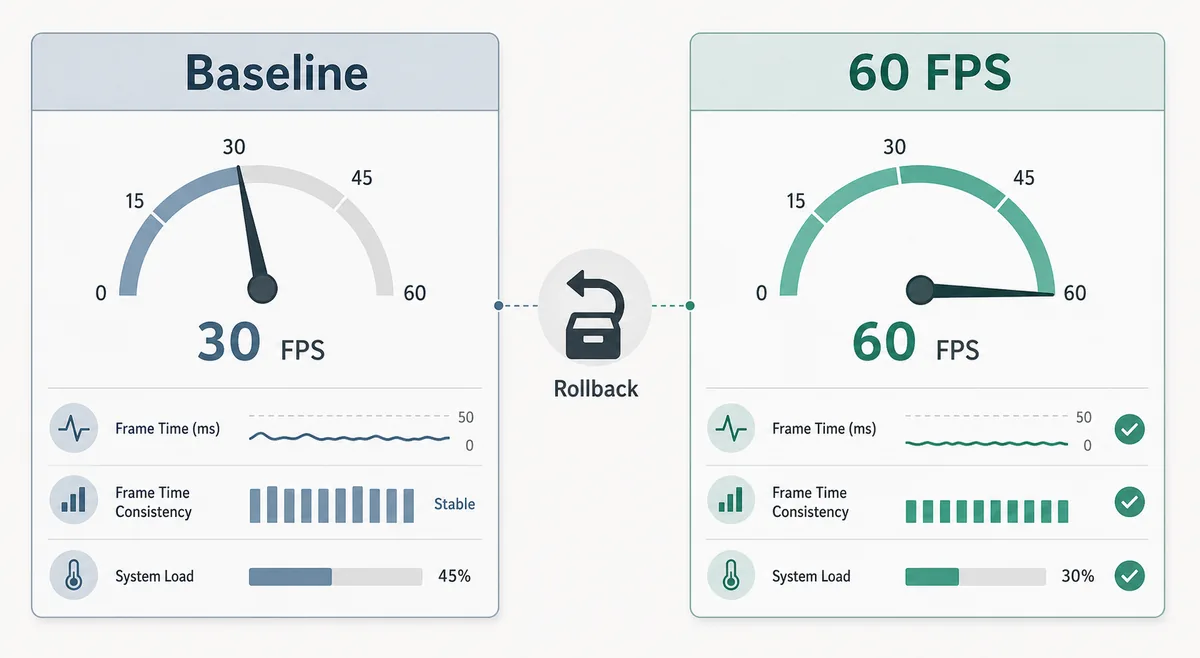
A mod can unlock or adjust a target frame rate, but it cannot create unlimited CPU, GPU or driver headroom. If the baseline already struggles at native resolution, a 60 FPS patch may expose more stutter instead of solving it. Lower resolution scale, close background tasks, update GPU drivers where appropriate, and test a stable graphics backend before deciding the patch is bad. On handheld devices, power limits and heat can matter as much as the mod itself.
Rollback should be boring and reversible. Close Ryujinx Canary, move the mod folder out of the game-specific mods directory, reopen the emulator, and retest the same save point. If the clean run works, the mod or version match is the likely issue. If the clean run still fails, move to the crash, update or compatibility guide instead of reinstalling everything.
This page does not provide 60 FPS mods, games, keys, firmware, game updates, DLC or copyrighted files. Use mods only from sources you trust, read the release notes, and avoid installers that bundle unrelated files. A trustworthy mod guide should explain placement, testing and rollback without turning into a download mirror or promising that every game will run at 60 FPS.
Use official documentation for setup context and community mod pages only when you already understand the legal and safety boundary.
Use the game-specific mods directory opened from Ryujinx. Put one named mod folder there, keeping exefs or romfs folders inside it instead of mixing files into the emulator folder.
Canary builds change quickly, and a mod can depend on timing, game code, update version or emulator behavior. Compare the same mod on the previous working build before changing everything else.
No. Game-specific FPS mods usually target specific update versions. A mismatch can cause crashes, timing bugs, broken menus or unstable physics.
No for the first test. Install one mod, retest the same scene, then add another only after the baseline is stable.
No. Shader cache affects compilation stutter and graphics pipeline behavior. A 60 FPS mod changes game-specific frame-rate or timing behavior.
No. This site explains safe setup and testing boundaries only. It does not host games, keys, firmware, DLC, updates or mod downloads.