Start from a working game setup
Launch the game from a clean Ryujinx profile with your legally dumped game and normal controller mapping. If the game itself does not boot, fix that setup or compatibility issue before testing amiibo.
Amiibo setup and troubleshooting
The shortest safe path for Ryujinx amiibo is to open the supported game’s amiibo entry, choose your own lawful amiibo data, and test the result with one game and one input profile. If the scan fails, isolate the menu, data, game-support, controller or Canary-build layer instead of changing everything at once.
$ menu: game > amiibo entry
$ data: use your own lawful dump
$ test: one game, one controller
$ status: isolate one problem layer
Editorial guide only. This page does not host amiibo data, games, keys, firmware or DLC.
Launch the game from a clean Ryujinx profile with your legally dumped game and normal controller mapping. If the game itself does not boot, fix that setup or compatibility issue before testing amiibo.
Use the game’s own menu or prompt for amiibo. The label and timing can differ by title, so do not assume that every game exposes the feature in the same place or supports every amiibo action.
When Ryujinx asks for an amiibo file or data source, use data you are entitled to use and keep the original file backed up. This guide does not provide dumps or link to random download pages.
Follow the game’s confirmation prompt, wait for the result, and check whether the expected item, character or event appears. Record the exact game, update and Ryujinx Canary build if the result is wrong.
If the scan fails, repeat the same action once with the same data and controller. Then change only the suspected layer: file selection, input mapping, game support or emulator build.
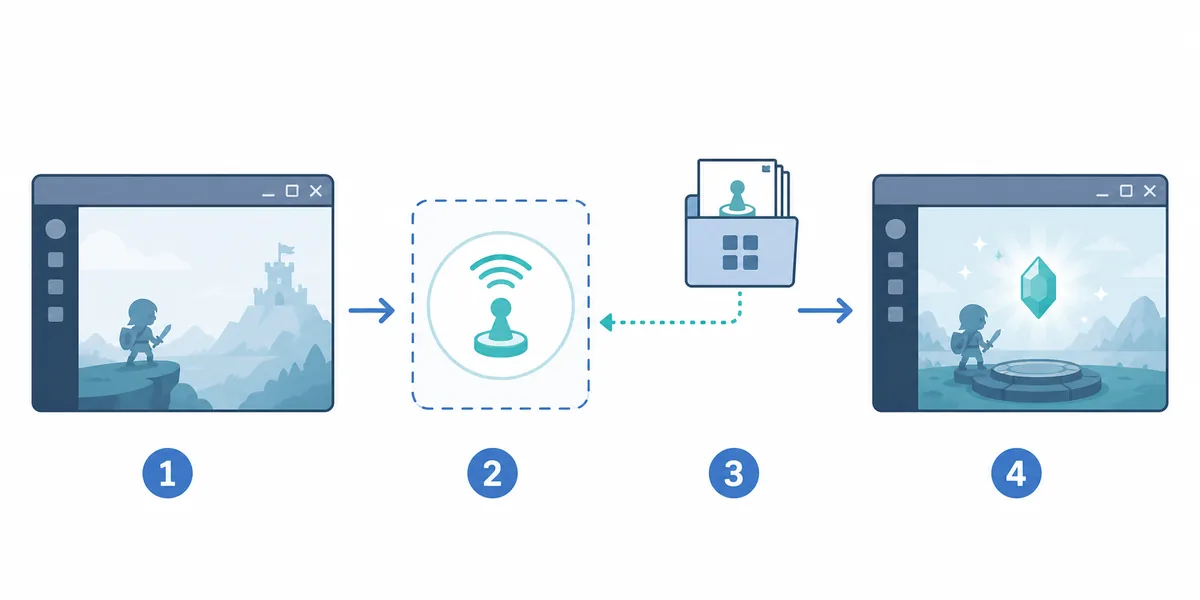
The useful test loop is menu entry, lawful data selection, game confirmation and one repeatable result. The illustration is an editorial explanation, not a screenshot of the Ryujinx interface.
Ryujinx amiibo support is a game-and-build interaction, not a promise that every title, amiibo action or input method will behave identically. A title may show an amiibo prompt but still require a particular game update, a compatible data format, a working controller profile and a build that does not contain a regression. Start with the feature as the game presents it, then document the result instead of treating one failed scan as proof that all amiibo support is broken.
There is no universal Ryujinx menu path that replaces the game’s own instructions. In many titles, you first enter gameplay or a feature menu, select the amiibo-related action, and then respond to the emulator prompt. Read the on-screen instruction carefully: some games require a particular controller button, a short timing window or a second confirmation after the data is selected.
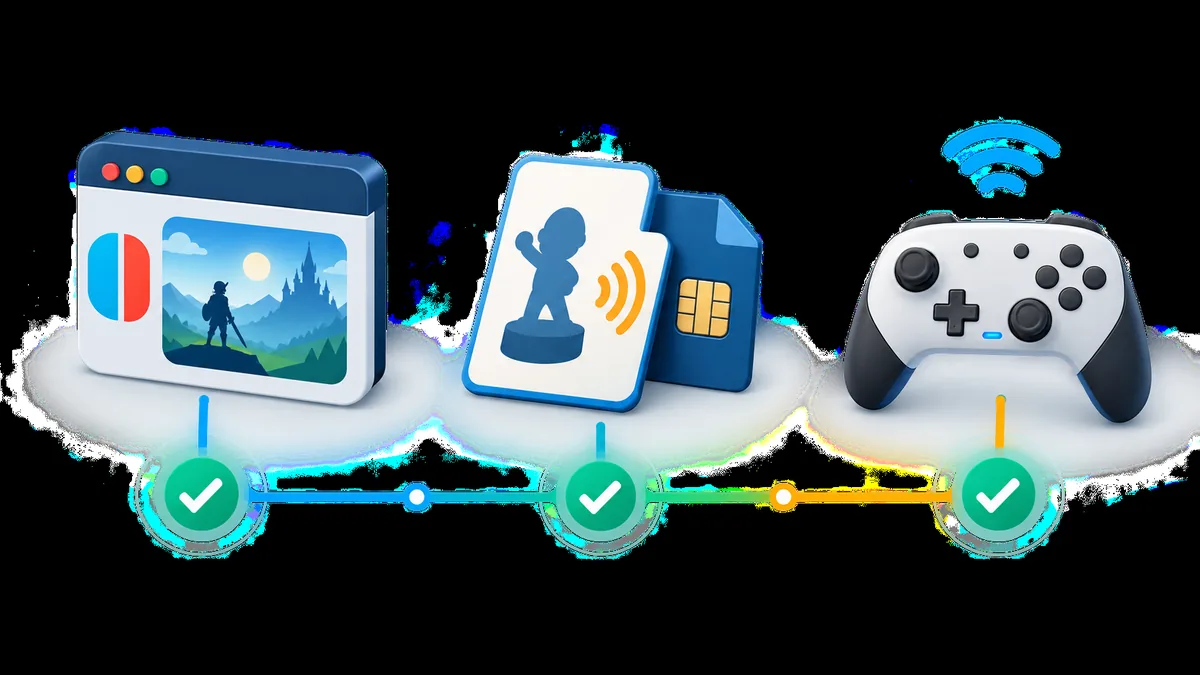
Most failed amiibo attempts are easier to diagnose when the preparation is boring and repeatable. Keep a backup of your own data, use a filename and format accepted by the workflow you are following, and avoid mixing a new game update with a new emulator build. If a file is rejected immediately, that is a data or format clue; it is not a reason to download an unverified replacement.
Use the first visible failure as your boundary. If the game has no amiibo entry, investigate the title and its progression. If the entry opens but the file is rejected, investigate the data and format. If the file is accepted but the game does not respond, investigate input, timing and game support. If the same test changes after a Canary update, compare builds before deleting a working profile.
| Visible symptom | Likely layer | Best next test |
|---|---|---|
| No amiibo option appears | Game flow or title support | Check the in-game instructions, progression and compatibility notes. |
| The prompt opens but data is rejected | Data or format | Recheck your own backup, filename and accepted format; do not use a random mirror. |
| The file is accepted but nothing happens | Input or timing | Test Player 1, the active controller and the exact confirmation button. |
| One game fails while another works | Game-specific support | Compare the same data path in the affected title and record its update level. |
| It worked before a Canary update | Regression or changed default | Compare the current build with the previous working build using the same profile. |
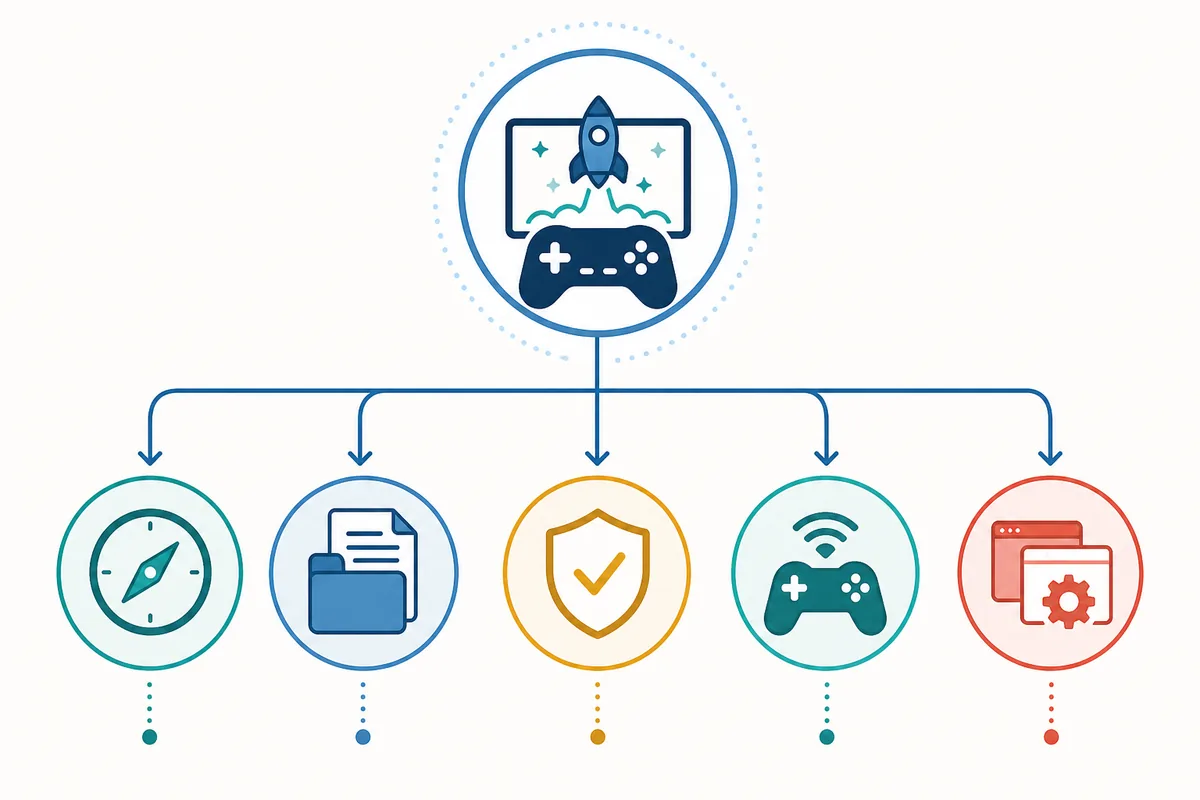
Amiibo behavior belongs to the complete test combination: game title, game update, save state, Ryujinx build, operating system, controller profile and selected data. If a guide or forum post names a particular game, treat it as a test clue rather than a universal compatibility promise. Reproduce the same scene on the current Ryujinx Canary build, then compare with the previous working build only if you can keep the other variables unchanged.
Search results for amiibo can mix legitimate setup questions with requests for dumps, ROMs, keys, firmware, updates or DLC. This page intentionally stays on the troubleshooting side. It does not host amiibo data, recommend random download pages or imply that an unofficial file is safe. Use official Ryubing documentation for emulator context and your own lawful sources for data you are entitled to use.
Use first-party documentation for emulator context, release history and troubleshooting boundaries.
Boot a supported game, use its in-game amiibo entry, select your own lawful amiibo data when prompted, complete the confirmation step and verify the result in the game. The exact menu label and timing depend on the title.
Follow the game’s own amiibo prompt rather than looking for a universal global scan switch. If the prompt opens but confirmation fails, test the active Player 1 controller and its mapping before changing data or firmware.
A rejection usually points to the selected data, filename or expected format. Recheck a backup of data you are entitled to use and avoid random download replacements.
No universal guarantee should be assumed. Support can vary by game, update, build, input path and the specific feature being tested. Record the exact combination and check compatibility notes.
Use the game’s own amiibo feature and follow its prompt after reaching the required menu or gameplay state. If a single title fails, test its update and compatibility path instead of treating it as a global Ryujinx failure.
No. This page does not host or link to amiibo dumps, ROMs, keys, firmware, updates or DLC. It explains a legal, repeatable troubleshooting workflow.