Use a stable local folder
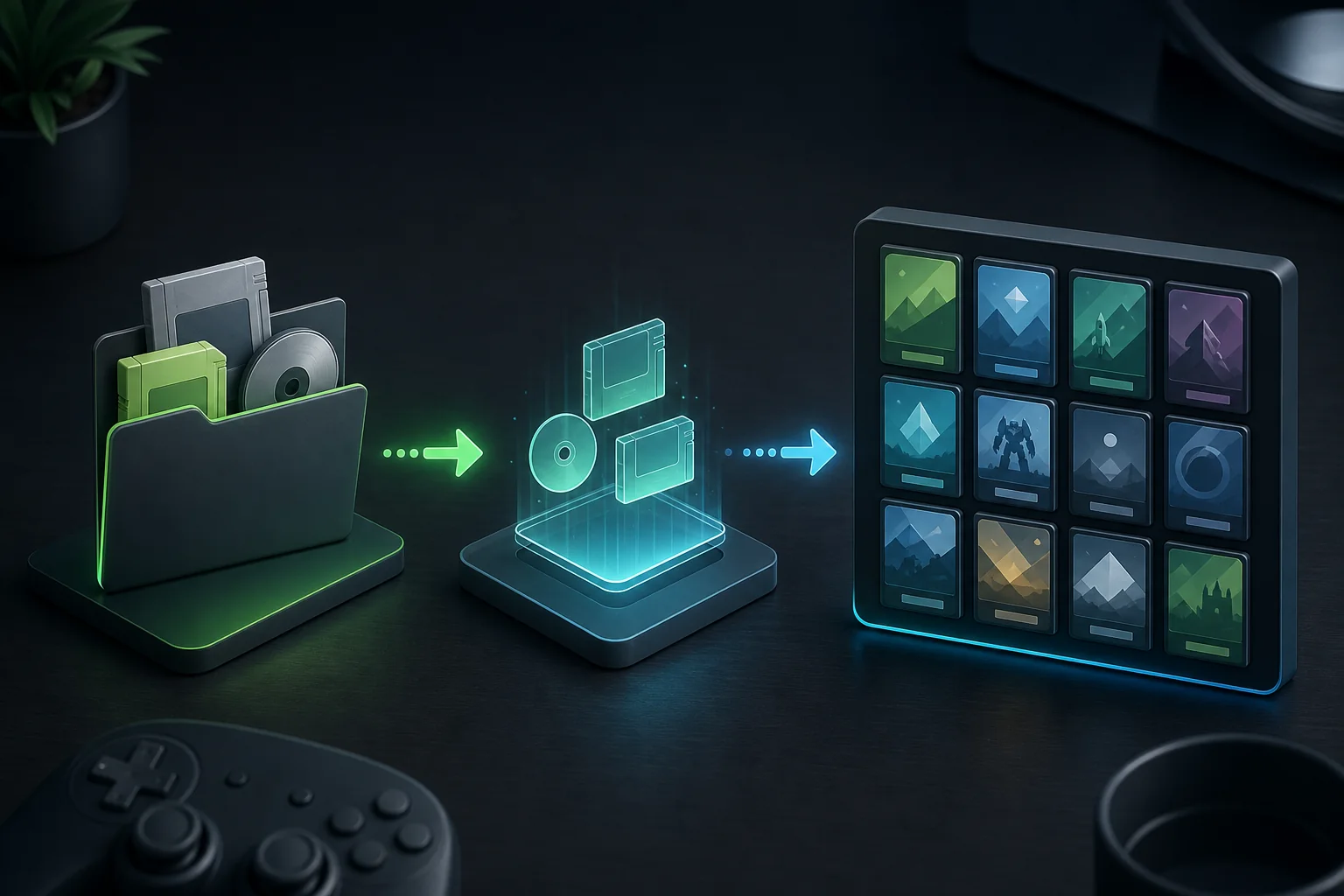
Keep your legally obtained game files in a folder you can read and back up. Avoid a temporary archive, a cloud placeholder or a protected system path while testing.
Game directory setup guide
Point Ryujinx Canary at a legal local game folder, rescan the library, and isolate path or permission problems when a title does not appear.
$ choose a stable local folder
$ open the game-directory setting
$ rescan and test one title
$ separate setup from downloads
This is an independent setup guide. It does not host games, ROMs, keys, firmware, updates or DLC.
Keep your legally obtained game files in a folder you can read and back up. Avoid a temporary archive, a cloud placeholder or a protected system path while testing.
Launch Ryujinx, open its settings or options area, and find the control labelled Game Directories or an equivalent library-folder field.
Choose the folder that contains the game files, apply the setting, then rescan or restart the library. Test one title before changing graphics or keys.
If the title appears but will not boot, move to compatibility or crash checks. If nothing appears, verify the path, file visibility and permissions first.
The short answer is: place your legally obtained game files in a stable local folder, open Ryujinx settings, add that folder under Game Directories, apply the change, and rescan the library. The exact label can vary between builds or translations, so look for the setting that controls the game library rather than guessing a hidden system path. If the game still does not appear, check the folder level, file visibility and permissions before changing firmware or graphics settings.
A game directory is a local folder that Ryujinx can read. It is not a release URL, a browser download location or a folder containing only an unopened archive. Keep the emulator package, user data and your own legally obtained game files separate so a path problem is easy to identify.
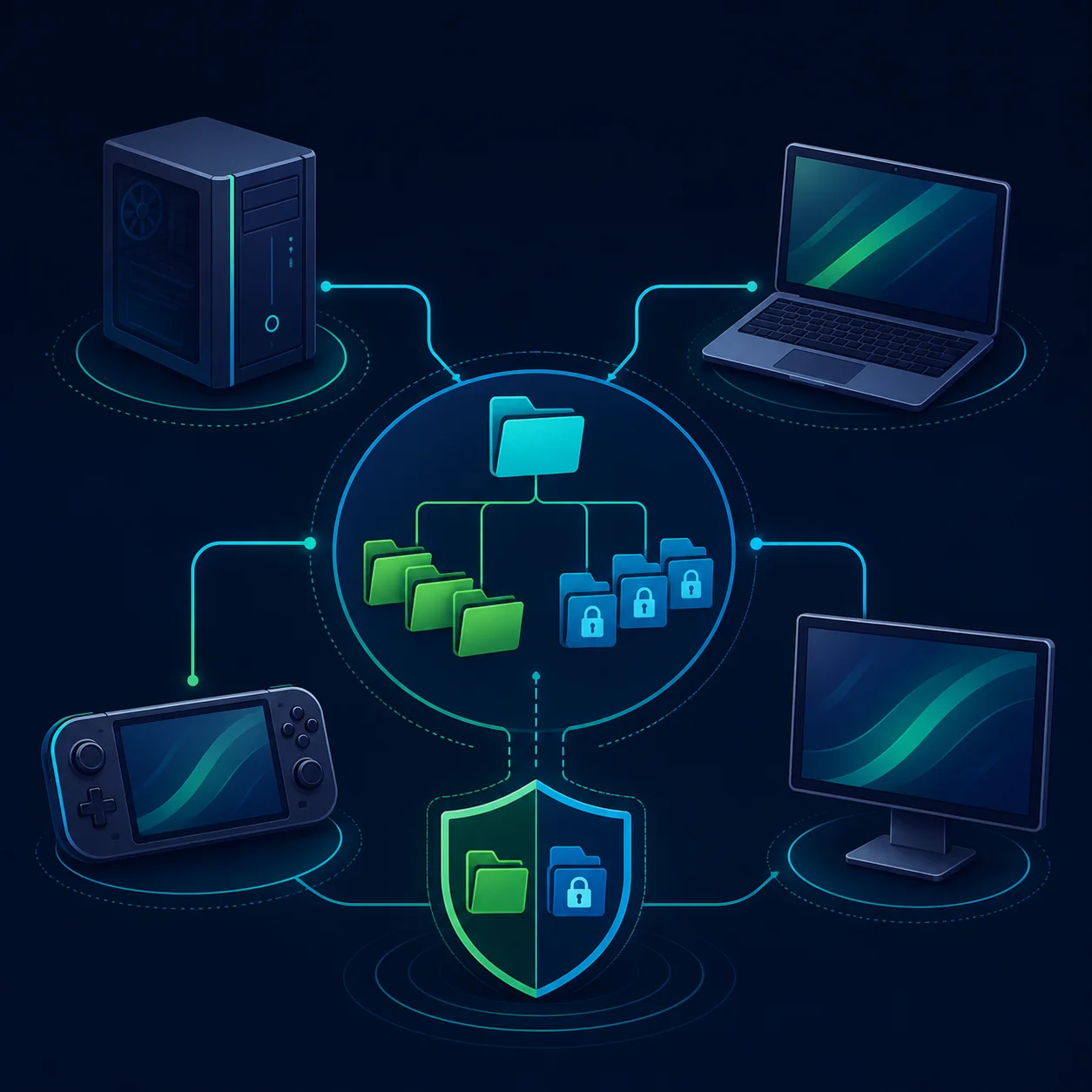
The same principle applies on every platform: use a readable folder, add that folder to the library and test one title. The visible path and permission behavior can differ, so use the table as a diagnostic starting point rather than a promise that every build uses the same menu wording.
| Platform or situation | Start with | Why it matters |
|---|---|---|
| Windows | A user-owned folder outside protected system locations | Permissions, drive letters and cloud placeholders can hide files. |
| Linux | A readable path with correct mount and file permissions | A mounted drive or case-sensitive path may not match what you typed. |
| macOS | A folder the app is allowed to read | Privacy prompts or external-volume permissions can block library scans. |
| Steam Deck | A stable Desktop Mode or game-storage path | Storage mounts and game-mode launch context can change path visibility. |
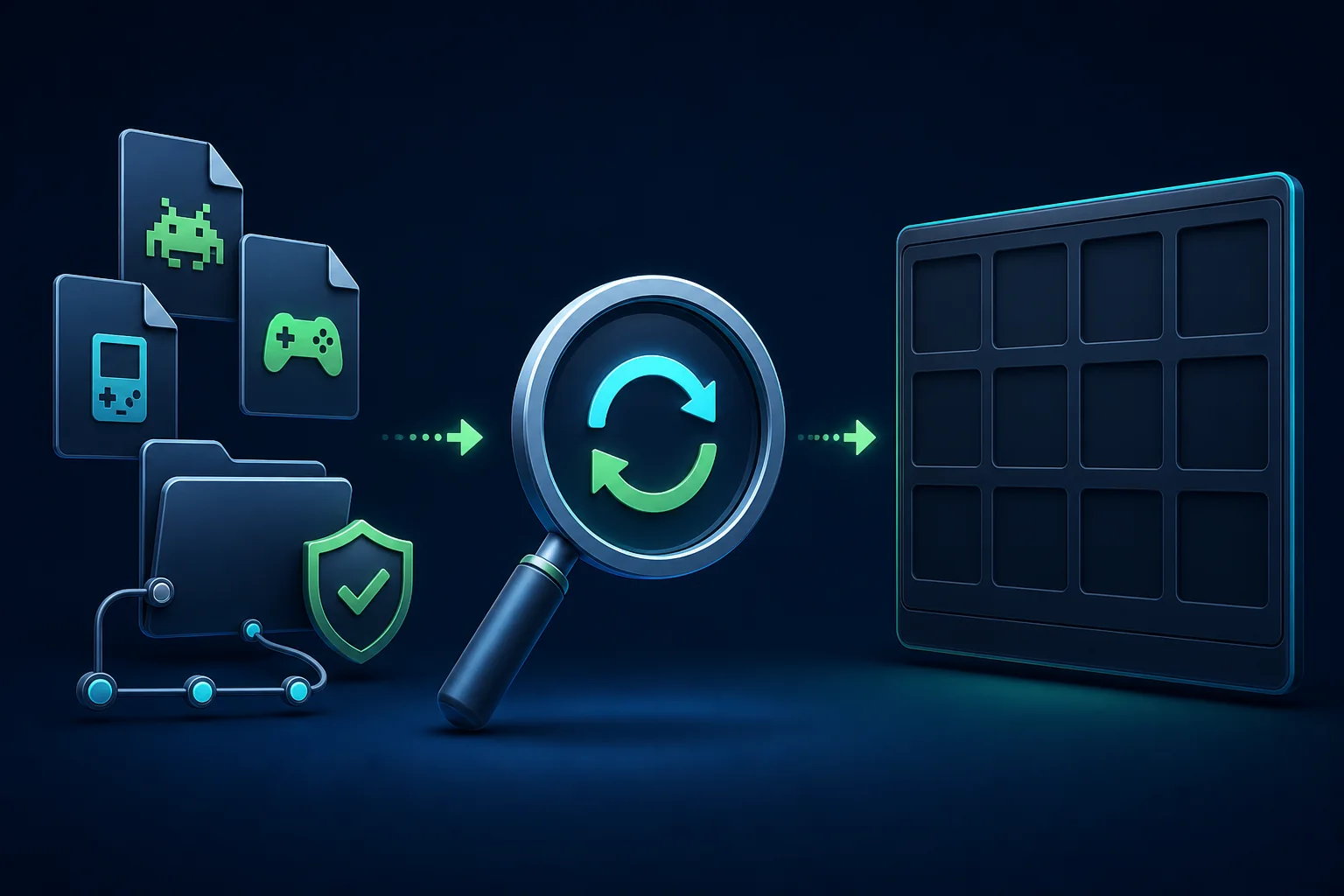
When a game does not show up, avoid changing several variables at once. Confirm that Ryujinx is reading the folder you selected, then rescan or restart the library. The symptom usually points to one of four layers: the wrong folder level, a hidden or incomplete file, a permission or mount issue, or a format that the current build does not recognize.
| Symptom | First check | Next action |
|---|---|---|
| The library is completely empty | Selected path and read permission | Choose the folder again, apply it, then restart Ryujinx. |
| Some games appear but one does not | That file's location and visibility | Check that the file is complete, locally available and inside the added folder. |
| The game appears but crashes | Whether the problem is after library detection | Use the compatibility and crash guides instead of repeatedly changing the directory. |
| The path works on one device but not another | Mount point, drive letter or access grant | Use a platform-specific readable path and add it again on the second device. |
This page explains how to point an emulator at files you are legally entitled to use. It is not a source for games, ROMs, keys, firmware, updates or DLC. Mixing download claims with directory instructions makes it harder to tell whether a missing title is a path problem or an unsafe package problem.
The directory task ends when Ryujinx can see the title and you can run a controlled first test. From there, route the next symptom to the page that owns it instead of changing the folder repeatedly.
The page follows the official documentation boundary for controls and troubleshooting while keeping all game and setup files outside the site.
Put your legally obtained game files in a stable local folder, open Ryujinx settings, add that folder under Game Directories or the equivalent library-folder setting, apply the change and rescan or restart the library.
Start with the folder that contains the files you want Ryujinx to scan. Do not point the setting at a browser page or an unopened archive, and do not assume the emulator program folder is the correct library folder.
Check the selected folder level, whether the files are fully available locally, whether the operating system allows Ryujinx to read the path, and whether a rescan or restart is needed. If one title appears but will not boot, switch to compatibility troubleshooting.
The setup idea is the same, but paths, mounts and permissions are not. Add a readable path for each device and verify the library in that platform's launch context.
No. This page only explains how to configure a local game directory for files you are legally entitled to use. It does not host or link to games, ROMs, keys, firmware, updates or DLC.