Download the correct package
Start from the trusted Ryubing Canary release source, choose the package for your operating system, and do not use repacked installers, APK mirrors or pages that bundle setup files.
Setup guide
Follow a clean setup sequence so the emulator build, legal setup files, firmware and game directory are configured in the right order.
$ channel: canary
$ platforms: windows linux macos
$ source: ryubing releases
$ status: verify before download
Independent guide. No keys, firmware, ROMs, DLC or game files are hosted here.
These links point to verified Ryubing Canary release assets checked during implementation.
Start from the trusted Ryubing Canary release source, choose the package for your operating system, and do not use repacked installers, APK mirrors or pages that bundle setup files.
Extract the full archive into a normal user folder such as Downloads, Documents or a dedicated emulator folder. Avoid protected system folders if permission warnings appear.
Open the emulator once before adding setup files so the expected user folders are created by the app itself.
Use only legally dumped prod.keys from your own console. Open the Ryujinx folder from inside the app, place the file in the system folder, then restart.
Install firmware only after keys are detected, using a legally dumped firmware source. Restart before testing a game.
Add a legally dumped game directory and test one title before changing graphics, audio or controller settings.
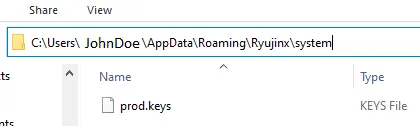
This screenshot from the Ryujinx setup documentation shows the intended system folder location for legally dumped prod.keys. It is included as placement context only; this site does not provide keys or firmware downloads.
Source: Ryujinx setup guideAfter Ryujinx Canary launches correctly, configure controller input, graphics backend and audio settings one at a time. Canary builds can change quickly, so avoid changing many settings at once while troubleshooting.
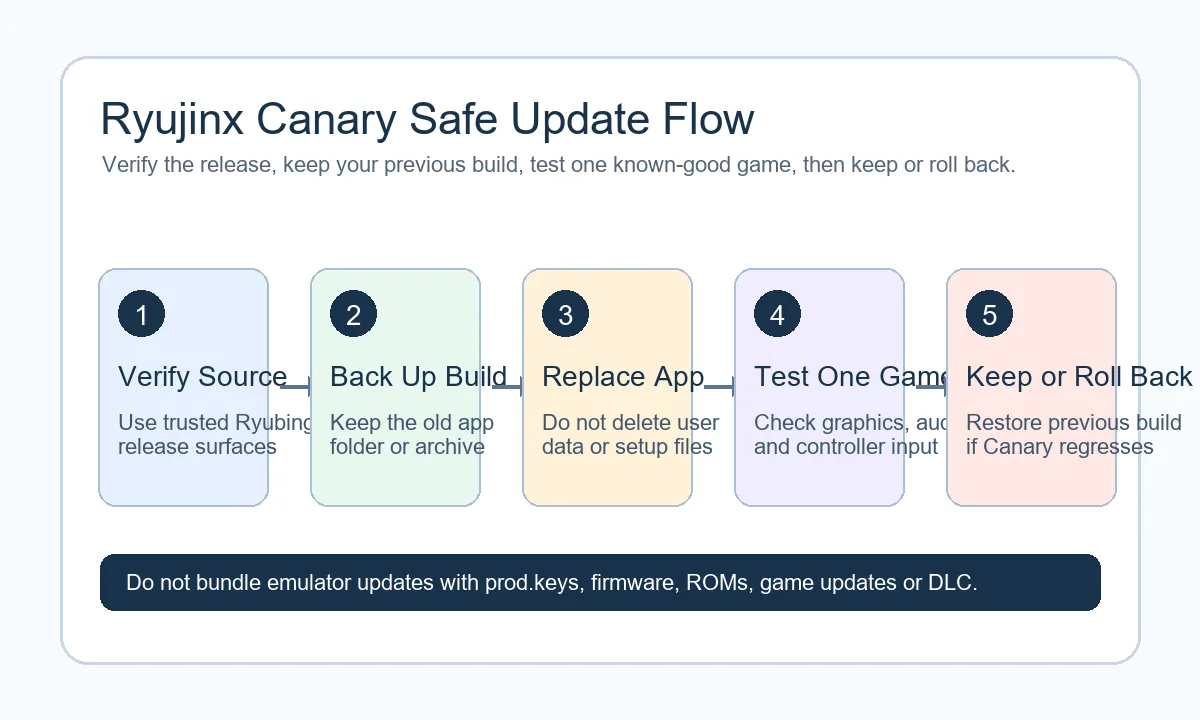
Before updating, keep a copy of your current build and user data. If the newest Canary build crashes, returning to the previous archive can confirm whether the issue is a regression.
First launch creates user folders and reduces path confusion. Instead of telling users to guess hidden directories, the install page should tell them to open the Ryujinx folder from inside the application. This improves setup accuracy and helps prevent support issues around misplaced prod.keys or firmware files.
New users often change graphics, audio and input options before confirming a clean launch. A better install flow is to complete keys, firmware and game directory setup first, test one legally dumped title, then adjust graphics backend, resolution, controller mappings and audio settings one at a time.
The safest order is download, extract, launch once, open the Ryujinx folder from the app, add legally dumped prod.keys, install legally dumped firmware, then add your game directory. This order matters because each later step depends on folders and detection created by the earlier step.
Ryujinx Canary is commonly handled as an extracted folder rather than a traditional installer. That makes rollback easier because you can keep several builds side by side. A portable-style folder also helps when testing whether a crash is tied to a specific Canary version. The tradeoff is that users must be disciplined about where they extract files and which shortcut points to which build.
A clean install is confirmed when Ryujinx Canary opens from the extracted folder, detects legally dumped keys, installs firmware without errors, lists your legal game directory and starts one title. If one layer fails, fix that layer before changing graphics, controller or audio settings.
Before replacing a working Canary folder, keep the old archive, back up saves and configuration, note the current version, and test one title after updating. If the new build fails, compare against the previous build before changing keys, firmware or graphics settings.
Searches such as “how to download Ryujinx Canary” and “como descargar ryujin canary” often mix package choice with setup steps. Keep the boundary clear: the download page owns release source and package choice, while this install page owns extraction, first launch, legal keys, firmware installation and one-game validation.
If you need to uninstall Ryujinx Canary completely, separate the app folder from user data. Back up saves and configuration before deleting anything. A reinstall should not be the first troubleshooting step unless you know whether the problem is the build, setup files, drivers or a specific game.
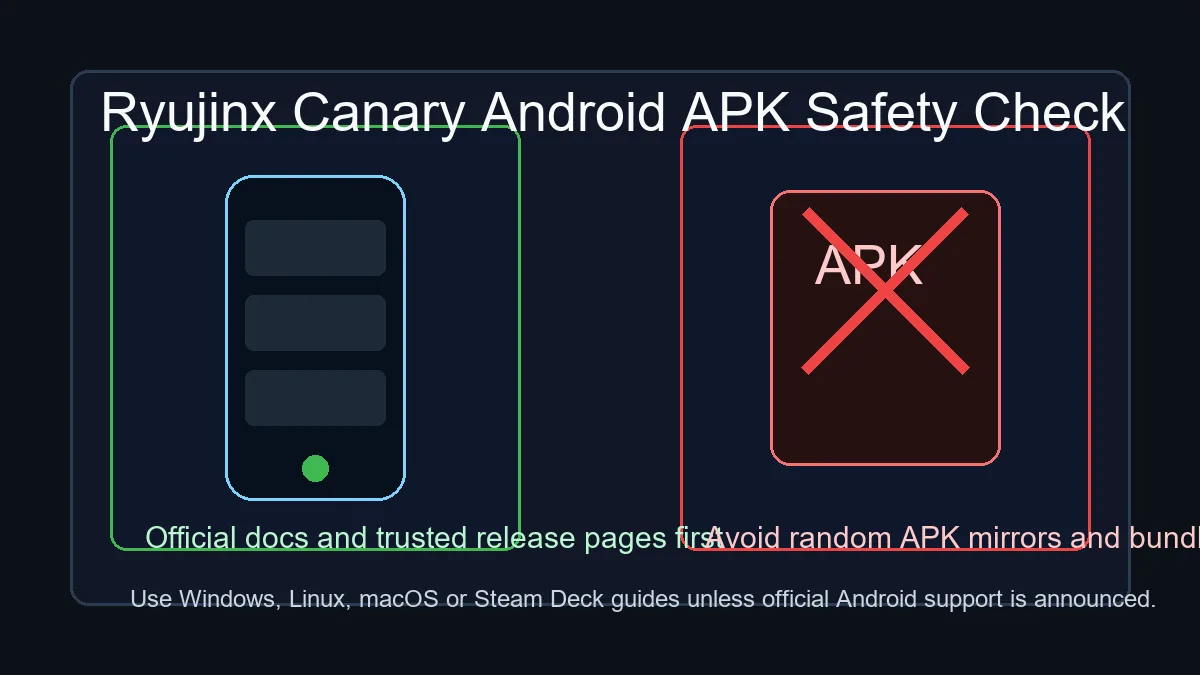
A query like “ryubing apk” is not a normal Windows, Linux or macOS install step. If a user lands here from APK intent, the safest guidance is to avoid random Android packages unless official support is clearly announced and to review the Android APK safety guide instead of installing a mirror file.
Use these references to verify release status, setup expectations and troubleshooting details before publishing download guidance.
The emulator can launch without them, but compatible game setup requires legally dumped keys and firmware from your own Nintendo Switch.
Use a normal user folder such as Downloads, Documents or a dedicated Games/Emulators folder. Avoid protected locations if permission errors appear.
It is safer to extract the new build to a separate folder first, verify that it works, then remove the older build later.
Running as administrator can create permission and file ownership issues. Launch it as a normal user unless project documentation says otherwise.
Yes, many users keep separate extracted folders for Stable and Canary. Keep track of which shortcut launches which build, and avoid deleting working folders until the new build is tested.
Back up saves, configuration and any folder that stores user data. Also keep a copy of the previous emulator archive if you are testing a new Canary build.
First launch creates the expected user folders. Opening the Ryujinx folder from the app is safer than guessing the path manually.
Launch the emulator, confirm keys and firmware are detected, add one legally dumped game directory, then start one title before changing advanced graphics, audio or controller settings.
Extract the archive, launch the emulator once, add legally dumped keys, install legally dumped firmware, then add and test one legal game directory before tuning graphics or controllers.
Back up saves and configuration first. Then separate the extracted app folder from user data so you know exactly what will be removed.
No. APK searches are Android safety intent, not the normal desktop install flow. Avoid random APK mirrors unless official support is clearly announced, and use the Android APK safety guide for that question.