Confirm the game boots on a known-good setup
Start with a legal game dump, valid setup files and the default emulator profile. Do not test a new game, new build and new graphics settings in the same pass.
Game testing workflow
Use this guide when a game crashes, stutters, shows graphics issues, loses saves, or behaves differently after a Canary update. The goal is to separate emulator build changes, setup files, graphics settings, controller profiles and game-specific behavior before you change everything at once.
$ channel: canary
$ platforms: windows linux macos
$ source: ryubing releases
$ status: verify before download
Independent guide. No keys, firmware, ROMs, DLC or game files are hosted here.
Start with a legal game dump, valid setup files and the default emulator profile. Do not test a new game, new build and new graphics settings in the same pass.
Write down the build number, operating system, GPU, graphics backend and whether the issue started after an update.
Test graphics backend, resolution scale, VSync, shader cache and per-game settings separately so you know which change helped or hurt.
If the same game worked before, keep the old build available and compare it with the current Canary build using the same profile.
A missing key, broken firmware install, invalid game dump or controller profile can look like a game problem. Rule those out before treating the title as incompatible.
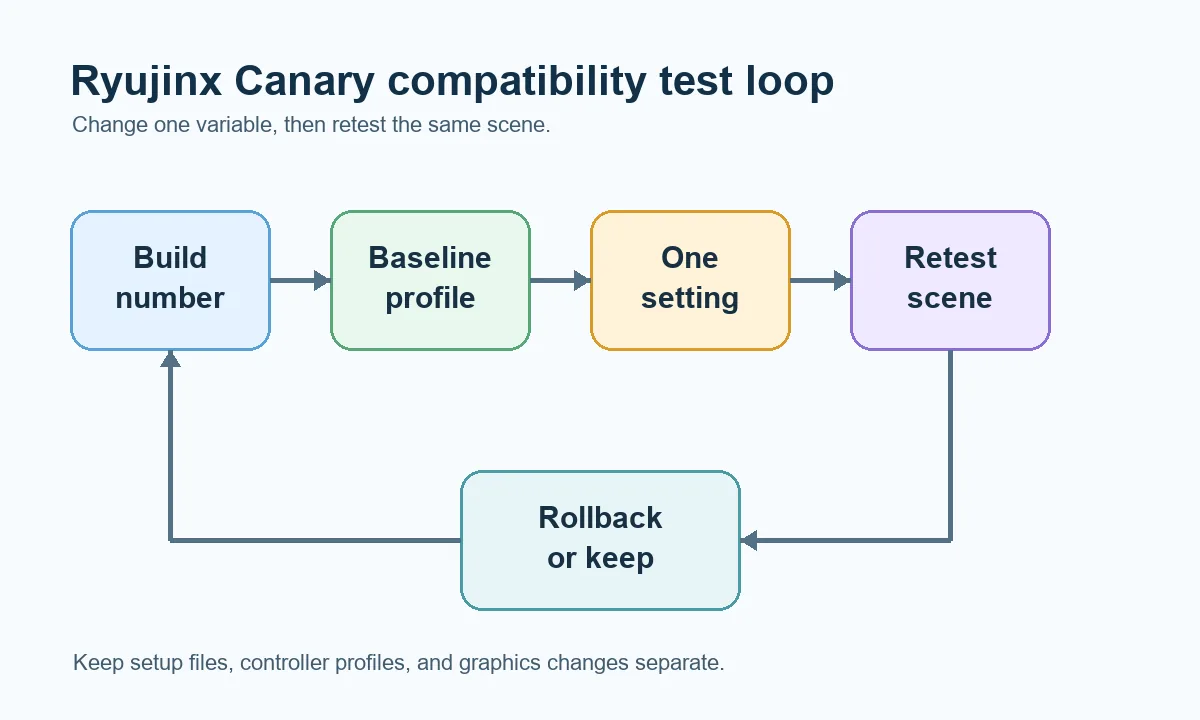
A useful compatibility test keeps the game, build, settings and setup files separated. Change one variable, retest, then decide whether the issue belongs to the game, the emulator build, the graphics profile or the setup path.
Compatibility is not a single yes-or-no label. A game can boot but still have shader stutter, missing video playback, broken rendering, audio timing issues, save problems or controller-specific behavior. Canary builds move quickly, so a title that worked yesterday can behave differently after a graphics, input or kernel-related change. Treat compatibility as a test result for a specific game dump, emulator build, operating system, GPU driver and settings profile.
Many users waste time changing random settings because every failure looks like a game compatibility problem. Start by matching the symptom to the most likely layer, then test only that layer.
| Symptom | Likely layer | Best next action |
|---|---|---|
| Game does not appear in the list | Game directory or file format | Check the game folder, supported file type and whether the directory was added correctly. |
| Game appears but fails before boot | Keys, firmware or game dump | Verify legal setup files and test another known-good title before changing graphics settings. |
| Game boots but shows visual glitches | Graphics backend or GPU driver | Test Vulkan/OpenGL behavior if available, update GPU drivers and change one graphics option at a time. |
| Game stutters heavily at first | Shader compilation or performance profile | Retest after shaders build, then compare resolution scale and backend settings. |
| Game worked before an update | Canary regression or changed default | Compare with the previous build using the same profile and document the build numbers. |
| Game runs but input fails | Controller profile | Use the controller fix guide instead of changing compatibility settings. |
A baseline profile is the fastest way to avoid false conclusions. Use default emulator settings, one game, one legal dump, one controller profile and one graphics backend. Launch the game, note the first failure point, then close Ryujinx Canary before changing anything else. If the baseline is already unstable because setup files are missing or the game dump is invalid, compatibility testing is not ready yet.
Graphics changes can help one title and hurt another, especially in fast Canary builds. If a game boots but has rendering problems, test the graphics backend first, then resolution scale, VSync, anisotropic filtering, shader cache behavior and any per-game overrides. Give each change a short test window and return to the previous setting if it makes the issue worse.
| Setting area | When to test it | How to judge the result |
|---|---|---|
| Graphics backend | Black screen, broken effects, driver-specific crashes | Compare the same scene and same save point before keeping the change. |
| Resolution scale | Low FPS, GPU load spikes, blurry or unstable output | Use native scale first, then raise scale only after the title is stable. |
| Shader cache | First-run stutter or repeated compilation pauses | Retest the same area after shaders build instead of judging only the first minute. |
| VSync and frame pacing | Uneven motion, tearing or timing oddities | Change one timing option and test a repeatable gameplay segment. |
When a game fails right after a Canary update, do not immediately delete configuration folders. Keep the current build, download or open the previous working build from the release history, then run the same game with the same setup and settings. If the old build works and the new build fails, the issue may be a regression or changed default behavior. If both fail, the cause is more likely setup files, drivers, game dump, save data or a changed local profile.
A compatibility guide should not become a file-sharing page. Ryujinx Canary does not include copyrighted keys, firmware, games, updates or DLC, and this site does not host them. If a game cannot boot because setup files are missing, finish the legal setup path first. If the game boots and only one title has rendering or performance issues, then compatibility testing becomes useful.
Good notes make compatibility problems easier to reproduce. Include the Canary build number, operating system, CPU, GPU, driver version, graphics backend, game version or update status, the exact place where the issue appears, and whether the same title worked in an earlier build. Do not include keys, firmware, ROMs, DLC, save files with private data or links to copyrighted files.
Use these official references for setup context, release history and troubleshooting boundaries.
No. Compatibility depends on the specific game, build, operating system, GPU driver and settings profile. Start with defaults, then test one variable at a time.
Canary builds change quickly. Compare the current build with the previous working build using the same game and profile before deleting configuration files.
Usually no. Keys and firmware affect setup and boot behavior. Visual glitches after a game already boots are more likely graphics, driver, shader or build-related.
First-run stutter can come from shader compilation. Retest the same area after shaders build, then compare resolution scale, backend and driver settings.
Yes. A per-game override can preserve a bad setting. Test with the default profile first, then add per-game settings only after the baseline is known.
No. This site does not provide games, ROMs, keys, firmware, updates or DLC. The page only explains a legal troubleshooting workflow.