Find the game and the reported status
Use a compatibility list to see whether the title has been tested and what kind of result was reported. Record the source and date instead of copying a bare green or red label.
Compatibility list guide
A compatibility list is useful for finding a starting point, but it is not a permanent promise. Learn how to interpret status labels, separate setup errors from game behavior, and reproduce a result with the same game, build and settings.
$ channel: canary
$ platforms: windows linux macos
$ source: ryubing releases
$ status: verify before download
Independent guide. No keys, firmware, ROMs, DLC or game files are hosted here.
Use a compatibility list to see whether the title has been tested and what kind of result was reported. Record the source and date instead of copying a bare green or red label.
A result is meaningful only when the emulator build, game update, operating system and graphics path are close to your own setup.
Launch one legal game dump with a clean profile and default graphics settings. Do not combine a new build with new firmware, mods and controller changes.
If the symptom is graphics, input or stutter related, change one setting, repeat the same scene and write down the result.
If a Canary update changed the result, keep the current folder and compare the previous build with the same profile before deleting data.
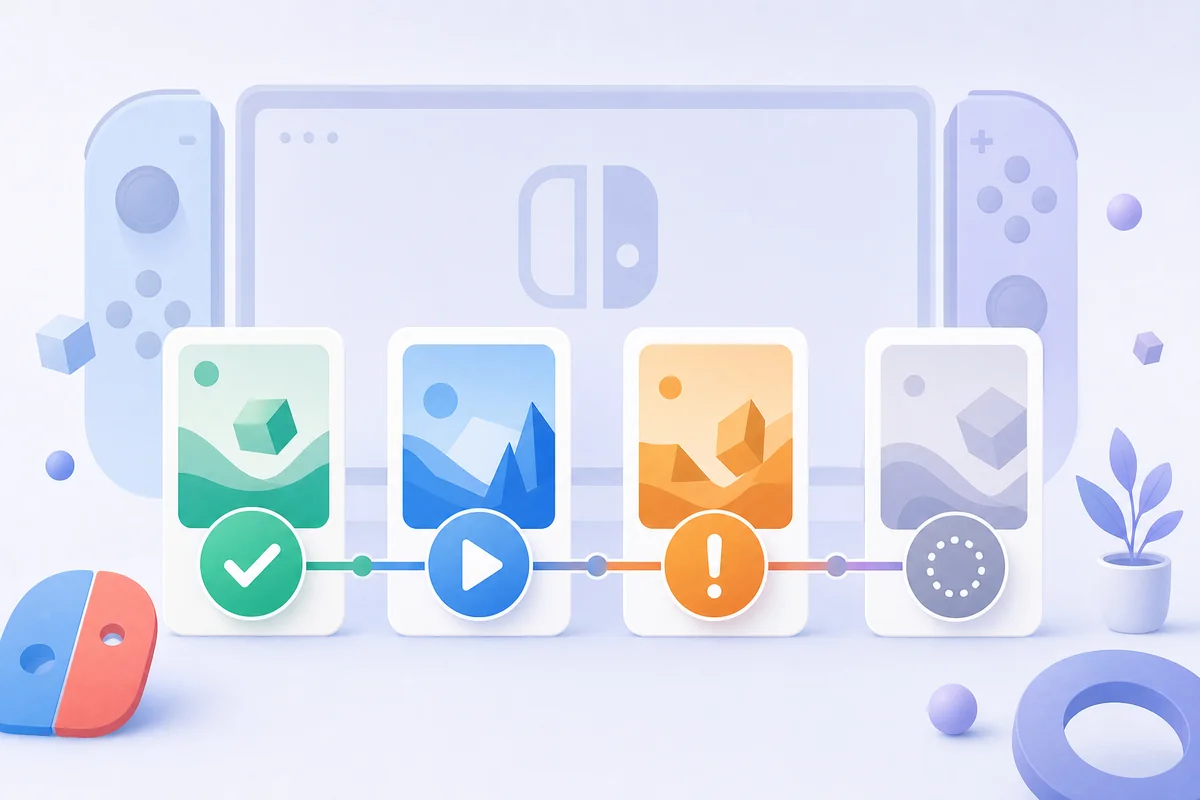
Editorial illustration, not a live game database or official Ryujinx interface. A status label is a clue about a specific test, not a guarantee for every build and computer.
A Ryujinx compatibility list is a collection of reported tests. It can tell you that someone reached a menu, completed a section, saw a rendering problem or could not test a title. It cannot guarantee that your game will behave the same way because emulator builds, game updates, drivers, operating systems, graphics backends, controller profiles and local files differ. Read each entry as a dated observation with a scope, not as a permanent rating. The most useful records include the emulator build, game version, platform, GPU path and the exact symptom. A short status without those details is a lead for your own test, not a final answer.
The word list in a search result often hides the difference between a game that launches and a game that is comfortable to play. Use the status as a triage signal, then look for the test conditions and the date. If a report is old, a newer Canary build may improve the result or introduce a regression. If a report does not mention the game update or graphics backend, lower your confidence. The table below gives a practical reading model for a community result; it is not an official universal rating system.
| Status signal | What it usually means | What you should verify |
|---|---|---|
| Boots | The title reached a menu or scene. | Check loading, saves, graphics, audio and input before calling it playable. |
| Playable | A reporter found a usable result in a stated setup. | Match the Canary build, game update, platform and driver as closely as possible. |
| Issues | The game runs with a known limitation or failure point. | Identify whether the issue is a build regression, driver, shader, setting or game-specific bug. |
| Untested | There is no reliable report for the exact combination. | Do not convert missing evidence into a claim that the game is broken. |
The list answers “what has someone observed?” Your test answers “what happens on my current setup?” Those are different questions. A community entry may use a stable build while you use Canary, or it may test an earlier game update, another GPU driver or a different operating system. Start from the closest matching report, but preserve enough information to reproduce it. When the report and your result disagree, do not immediately label the list wrong. First compare the build number, game update, graphics backend, save state and any per-game overrides. The disagreement may reveal a version boundary rather than a universal incompatibility.
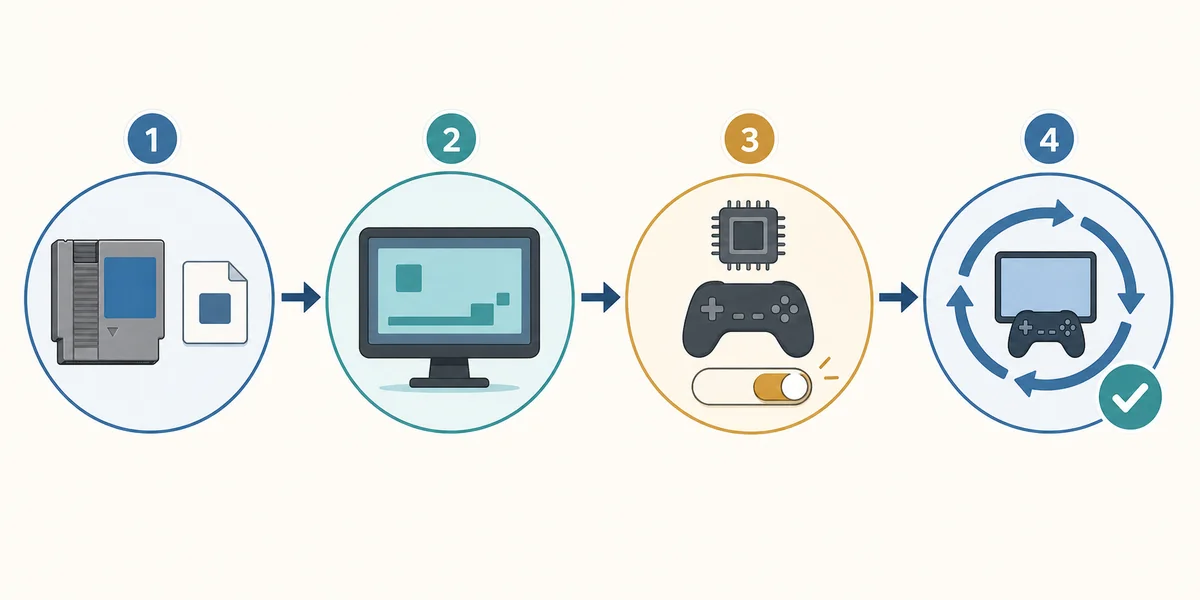
A clean baseline prevents a compatibility question from becoming a pile of unrelated changes. Use one legally dumped game, one Ryujinx profile, one Canary build and default settings. Launch the same area or repeat the same action, note where the result changes, and only then test a graphics backend, resolution scale, shader cache or controller profile. Keep the previous folder available when you are testing a new Canary build. This order is slower than random tweaking for the first five minutes, but it creates evidence you can use for rollback, a bug report or a safer next step.
Many pages call every failure a compatibility problem, but a missing game entry, a prod.keys error and a rendering regression are not the same layer. Route the symptom before judging the title. If the issue belongs to setup, input, graphics or the release build, a new compatibility label will not fix it. This distinction also helps you choose the right existing guide on this site.
| Observed symptom | Likely layer | First useful action |
|---|---|---|
| The title is missing from the game list | Game directory or file format | Check the directory path and supported file type before changing graphics settings. |
| The title fails before a menu | Setup files, game dump or profile | Check the legal setup path and compare with another known-good title. |
| The title boots with a black screen or broken effects | Graphics backend, driver or Canary regression | Compare one backend or a previous build using the same scene. |
| The first minutes stutter badly | Shader compilation or performance headroom | Retest the same scene after shaders build before judging the result. |
| The game worked until an update | Build regression or changed default | Compare the current and previous build without replacing the profile. |
| The game runs but input fails | Controller profile or input layer | Use the controller troubleshooting path instead of changing compatibility labels. |
Canary is useful when you want recent changes, but a fast-moving build can change a game result. If the title worked in the previous build and fails in the current one, preserve both folders and compare the same game, save and profile. A regression is more credible when the failure is repeatable and the setup files did not change. Do not respond to a graphics regression by replacing keys or firmware unless the error actually points to those files. Record the first failing scene, the graphics backend, the driver and the two build numbers. That information is more actionable than a generic claim that the game is incompatible.
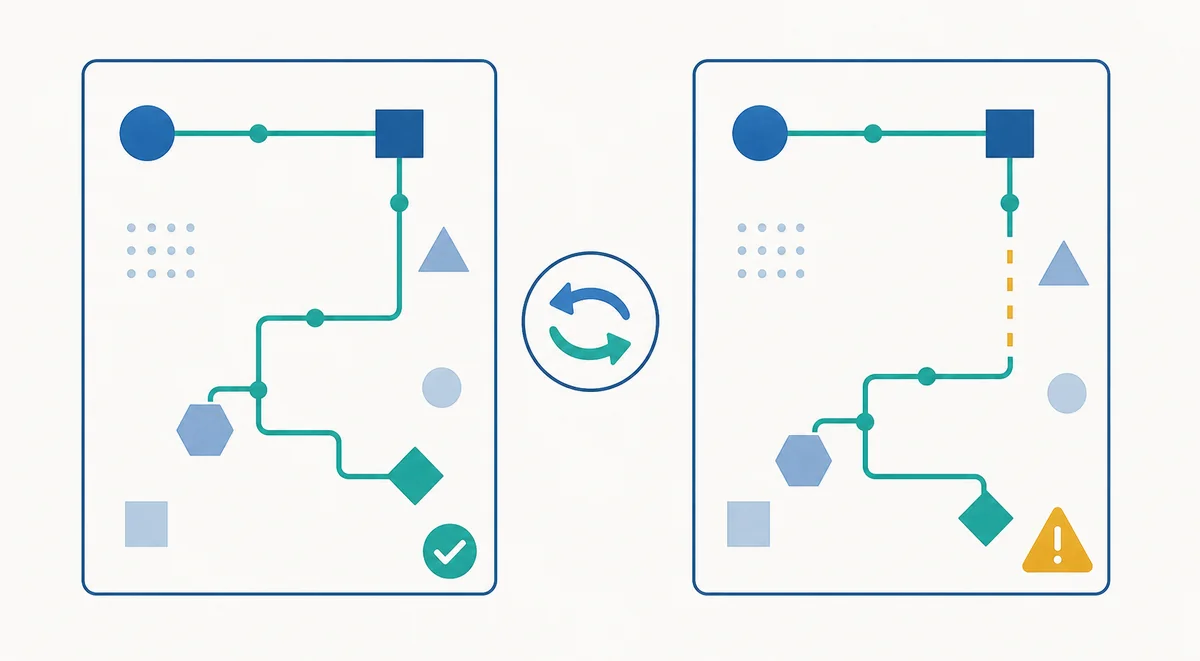
A community-maintained list can be the fastest way to discover a known symptom, but its coverage and freshness vary. Treat third-party entries as source material and preserve their attribution. Do not rewrite a community status as an official Ryujinx promise, and do not assume that a popular title has a current result for every operating system. When a list points to a discussion or issue, read the surrounding test conditions. A result with a build number, game update and reproducible symptom is more useful than a screenshot without context. If no current report exists, say that the combination is unverified rather than filling the gap with a confident label.
A compatibility list should remain separate from download requests for ROMs, keys, firmware, DLC, game updates or patched bundles. This page does not host or link to those files. Use your own legally dumped game and setup files, verify the Ryubing release source for the emulator build, and keep unrelated downloads out of the test. A page that bundles a “compatibility pack” with an emulator is not stronger evidence; it makes the result harder to reproduce and creates an avoidable safety and legal problem.
A useful report makes the disagreement testable. Write the game title, game update or version, Ryujinx Canary build, operating system, CPU and GPU, driver version, graphics backend, controller path, save location and the exact scene where the issue appears. Say whether the title reached a menu, whether the same action worked in the previous build and which single setting you changed. Avoid posting private or copyrighted files. These notes help you decide whether the next step belongs in the crash guide, graphics guide, controller guide, update guide or keys and firmware guide.
Use these references to compare reported status, release context and setup boundaries. Community material is not presented as an official guarantee.
Do not assume that a search result is an official live database. Community lists and issue reports can be useful, but check the source, date, build and test conditions, then verify the title on your own setup.
Boots usually means the title reached a menu or scene. Playable implies that the reporter found enough stability in graphics, audio, input, saves and performance for a stated setup.
Canary builds change quickly. A graphics, timing, driver interaction or default-setting change can create a regression, so compare the two builds with the same game, save and profile.
Usually not when the title already boots and the symptom is visual. Check the graphics backend, driver, shader behavior and build history first. Use keys and firmware troubleshooting when the error points to setup files or the game fails before boot.
Yes, as a starting point. Match the reported build and game update, keep the current folder, and compare one title before changing a working setup.
No. This page explains how to interpret compatibility evidence and test your own legal setup. It does not provide or link to games, ROMs, keys, firmware, DLC or updates.
Check whether the report used the same build, game update, driver and graphics backend. Retest the same scene after shader compilation, then change one performance setting at a time.
Use the controller, crashing and OpenGL-versus-Vulkan guides for their specific symptom. The compatibility list should help you route the problem, not replace focused troubleshooting.