Record the version you use now
Open Ryujinx Canary, note the current build or keep the archive name. If the app no longer opens, record the folder date and file name before changing anything.
Update and rollback guide
Ryujinx Canary changes quickly, so the safest update is not just downloading the newest archive. Check the release source, keep your current build, preserve your user data, test one game, and roll back if the new version breaks graphics, audio or controllers.
$ intent: update safely
$ backup: keep old build
$ risk: canary regressions
$ rollback: test before deleting
Independent guide. We do not host emulator binaries, keys, firmware, ROMs, updates or DLC.
Use this checklist before replacing an existing Canary folder. It keeps emulator files, user data, keys and firmware boundaries clear.
| Check | What to do | Why it matters |
|---|---|---|
| Release source | Open the trusted Ryubing Canary release surface from the download guide and confirm the version or tag before downloading. | Canary builds move fast, and mirror pages can lag behind or rename files. |
| Current build backup | Keep the current archive or copy your existing application folder before extracting the new build. | A backup lets you roll back quickly if the newest build introduces a regression. |
| User data folder | Do not delete your Ryujinx user data, games directory, saves, keys or firmware while replacing the app files. | Most update problems come from mixing application files with setup data. |
| Platform package | Match Windows x64, Linux/AppImage, Steam Deck or macOS assets to the machine you actually use. | The wrong package can fail before Ryujinx even opens. |
| Post-update test | Launch once, open one legally dumped title, check graphics, audio and controller input, then decide whether to keep the build. | Testing one known-good case separates a Canary regression from unrelated configuration changes. |
Open Ryujinx Canary, note the current build or keep the archive name. If the app no longer opens, record the folder date and file name before changing anything.
Use the verified release source from the download guide. Avoid pages that combine the emulator with keys, firmware, game updates or DLC.
Copy the existing application folder or keep the old archive. Leave your saves, game directory, prod.keys and firmware setup in their normal user data locations.
Extract the new Windows, Linux or macOS package into a clean app folder. On Linux and Steam Deck, recheck executable permissions if the AppImage or binary will not start.
Run one familiar legally dumped game, verify controllers, audio and graphics, then keep the build only if the problem you were trying to solve is actually improved.
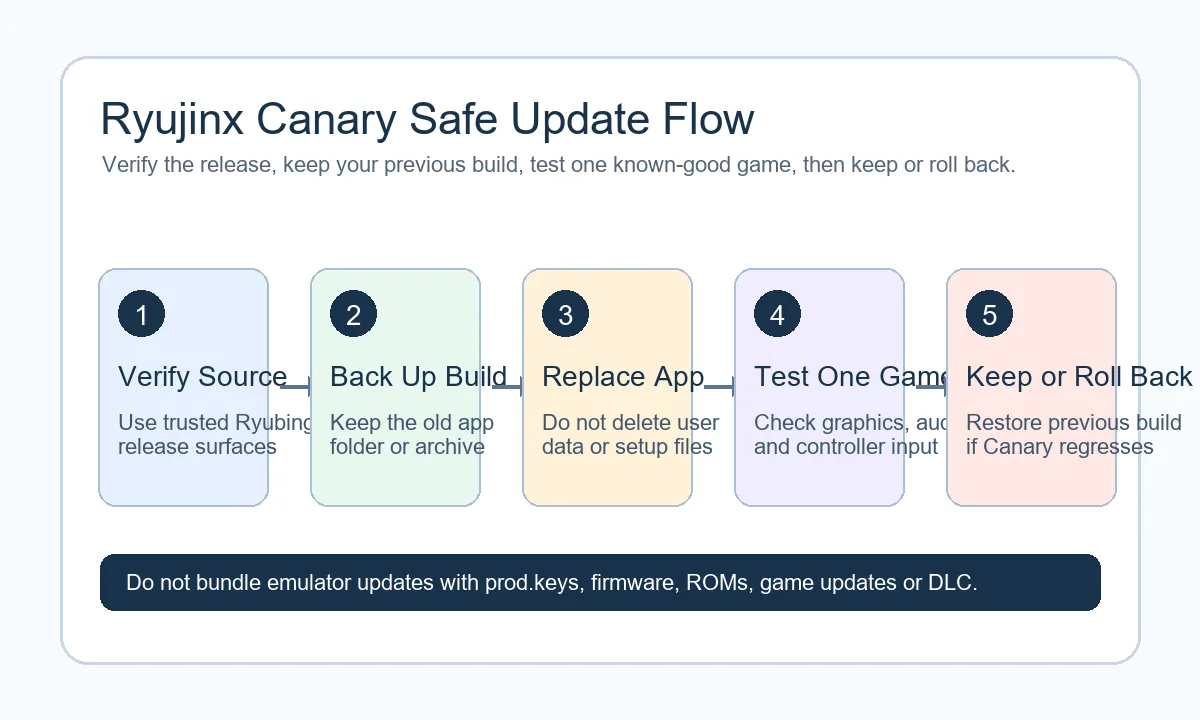
A safe Ryujinx Canary update is a loop: verify the release, back up the current build, replace only app files, test one known-good game, then keep or roll back.
Open Ryubing Canary releasesTo update Ryujinx Canary, download the latest trusted Canary package, keep a copy of your current build, replace the application files, and leave your user data alone. Your saves, game directory, controller profiles, keys and firmware should not be deleted just because you are trying a new Canary build. After updating, test one game you already know worked. If the new build crashes or behaves worse, switch back to the previous app folder and wait for a later release.
Canary builds are useful because they receive changes sooner, but that speed is also the risk. A build can fix one game and create a regression in another. It can change graphics behavior, controller handling, shader compilation, audio timing or startup reliability. Stable users can often update with less attention; Canary users should treat every update as a small test. Keeping the previous version is not optional housekeeping, it is the practical safety net that makes Canary usable.
Use the download page and trusted Ryubing release surfaces to confirm the newest available build before you replace anything. Search snippets and mirror pages may say latest even when they point to an older file. Compare the version tag, file name, platform label and release date. If you are following a guide that names a specific old version, treat it as historical context rather than proof that the same build is still current on June 4, 2026.
On Windows, extract the new x64 archive into a fresh folder or replace only the app folder after backing up the old one. Avoid extracting over a running application. If SmartScreen or antivirus warns after an update, verify the source again instead of clicking through automatically. Keep Ryujinx out of protected folders such as Program Files if permissions caused earlier issues. If the new build fails, close it, restore the previous folder, and confirm your user data folder was not moved.
For Linux and Steam Deck, the update method depends on whether you use an AppImage, tarball or launcher shortcut. Download the matching Linux package, keep the older file, and check executable permissions after replacing it. On Steam Deck, update one component at a time: first the emulator build, then controller or game mode shortcuts only if needed. If a new build breaks launch behavior, try the previous AppImage before changing Vulkan drivers, firmware or game files.
On macOS, replace the app bundle only after confirming the source and keeping the older app archive. Gatekeeper prompts can reappear because the app bundle changed, so treat security prompts as a reason to verify the download path. If a build stops opening, compare behavior with the previous app bundle before deleting configuration folders. Mac issues can come from the build, permissions, architecture assumptions or quarantine state, so do not erase setup files as a first response.
Rollback is simple if you prepared for it: close Ryujinx Canary, move the new app folder aside, restore the previous app folder or AppImage, and run the same known-good game you used for testing. If the old build works again, the new build is likely the trigger. Do not also change firmware, keys, game updates, mods and graphics settings during the same test, because then you cannot tell which change caused the issue.
The emulator update and your legal setup files are separate. A new Ryujinx Canary build does not automatically mean you should hunt for new prod.keys, firmware or game files online. If a game starts failing after an emulator update, first roll back the emulator build and compare. Only revisit keys or firmware when the visible error specifically points to missing or incompatible setup files, and only use files you are legally entitled to dump.
If Ryujinx Canary will not open after an update, check that you downloaded the right platform package and extracted it fully. If games open but stutter or crash, compare against the previous build and update GPU drivers only when the platform guide recommends it. If controllers stop responding, check input profiles before deleting configuration. If a page offered an all-in-one update with games or firmware included, discard it and return to a verified source.
Use the download guide when you need the current package path, the install guide when this is your first launch, the Windows, Linux, Steam Deck or macOS pages for platform-specific startup problems, and the keys and firmware guide only for legal setup placement. This update guide is about changing the emulator build safely, not about acquiring copyrighted files or game content.
Use source pages for project identity, release assets and setup boundaries before trusting a claimed latest build.
Download the latest trusted Canary package, keep your current build, replace only the application files, leave user data alone, then test one known-good game before deleting the backup.
Use trusted Ryubing release surfaces linked from the download and source-verification guides. Search snippets and mirror pages can be stale or renamed.
You can, but a clean replacement plus a backup is safer. Do not extract over a running app, and do not delete the user data folder unless you are deliberately troubleshooting configuration corruption.
It should not if you only replace the app package. Saves, game directories and profiles live separately from the downloaded application folder in normal setups.
No. Keep emulator updates separate from keys and firmware changes. Change one variable at a time so you can diagnose failures clearly.
Close the app, restore the previous app folder or AppImage, and test the same game. If the old build works again, wait for a newer Canary release before trying another update.