Confirm the game works offline first
Boot the game on each system before testing multiplayer. If the title cannot reach gameplay offline, fix setup, compatibility or controller issues first.
LDN and online play guide
Use this guide before you try Ryujinx multiplayer, online play or LDN rooms. The goal is to match emulator build, game version, network path and legal setup boundaries before you blame a server or replace working files.
$ mode: LDN / local wireless
$ match: build + game version
$ network: room and firewall
$ boundary: no game files
Independent guide. No keys, firmware, ROMs, DLC or game files are hosted here.
Boot the game on each system before testing multiplayer. If the title cannot reach gameplay offline, fix setup, compatibility or controller issues first.
Use the same Ryujinx Canary or Ryubing build, the same game update, matching DLC state and the same multiplayer mode on every device.
Not every game mode behaves the same way. Confirm whether the title uses local wireless style play, an LDN room, a LAN-like flow or a mode that expects official online services.
Test with two devices or two players, one room, one network path and default settings before changing firewall, VPN, DNS or build versions.
Write down build number, game version, room type, network, error text and where the connection fails. Do not replace keys, firmware or game files as a multiplayer fix.
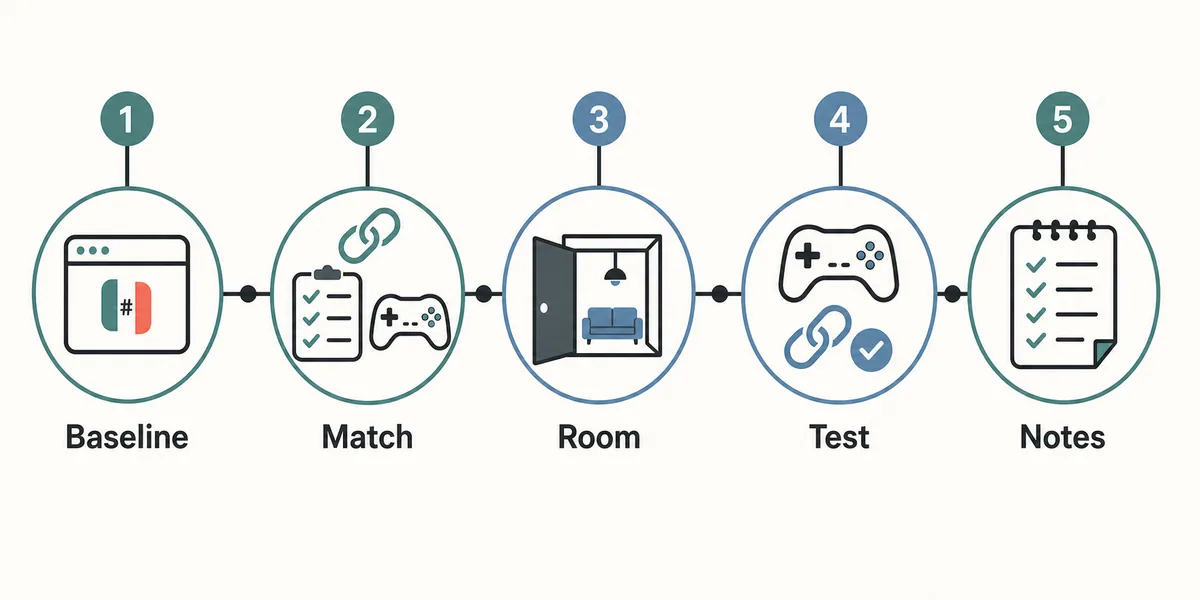
A useful multiplayer test keeps the game, build, room and network path fixed. Match the basics first, then change one connection variable at a time.
When users search for Ryujinx multiplayer, they often mean one of several different things: local wireless-style play through LDN, a community room or server browser, LAN-like testing with another device, or true official online services. Those are not interchangeable. Ryujinx and Ryubing builds can help with local wireless-style workflows, but they do not turn every Nintendo online feature into a public online service. Start by identifying the exact mode the game uses, then check whether both players are testing the same mode.
Most failed multiplayer attempts are not solved by changing random files. First make the build, game and network conditions line up. If one player has a different Canary build, game update, DLC state, save state, region, local wireless mode or firewall rule, the connection can fail before the actual game logic is tested.
| Layer | What to match | Why it matters |
|---|---|---|
| Build | Same Ryujinx Canary or Ryubing release when possible | Different builds can change LDN, input, graphics or compatibility behavior. |
| Game | Same game update, region and DLC state | Mismatch can prevent rooms from appearing or sessions from staying stable. |
| Network | Same room path, firewall allowance and VPN decision | Blocked ports or unstable tunneling can look like an emulator problem. |
| Mode | Local wireless/LDN mode, not an unrelated online menu | The wrong menu can require official services rather than LDN-style play. |
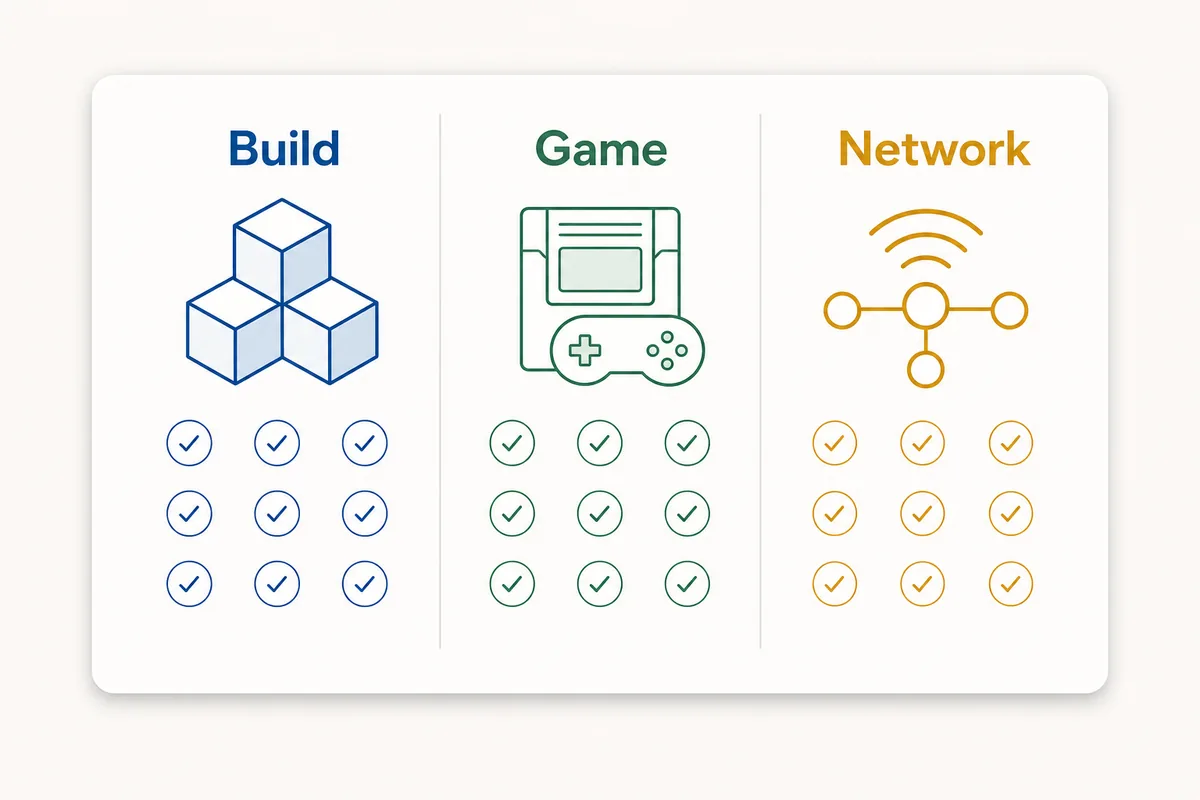
A server or room is only one part of the connection path. It can help players discover or join a compatible session, but it cannot fix an unsupported game mode, a broken game dump, missing setup files, a mismatched game update or a blocked local firewall. If you use a community room, test with minimal variables first: one game, one mode, two players, the same build family and no extra VPN changes unless the room instructions require them.
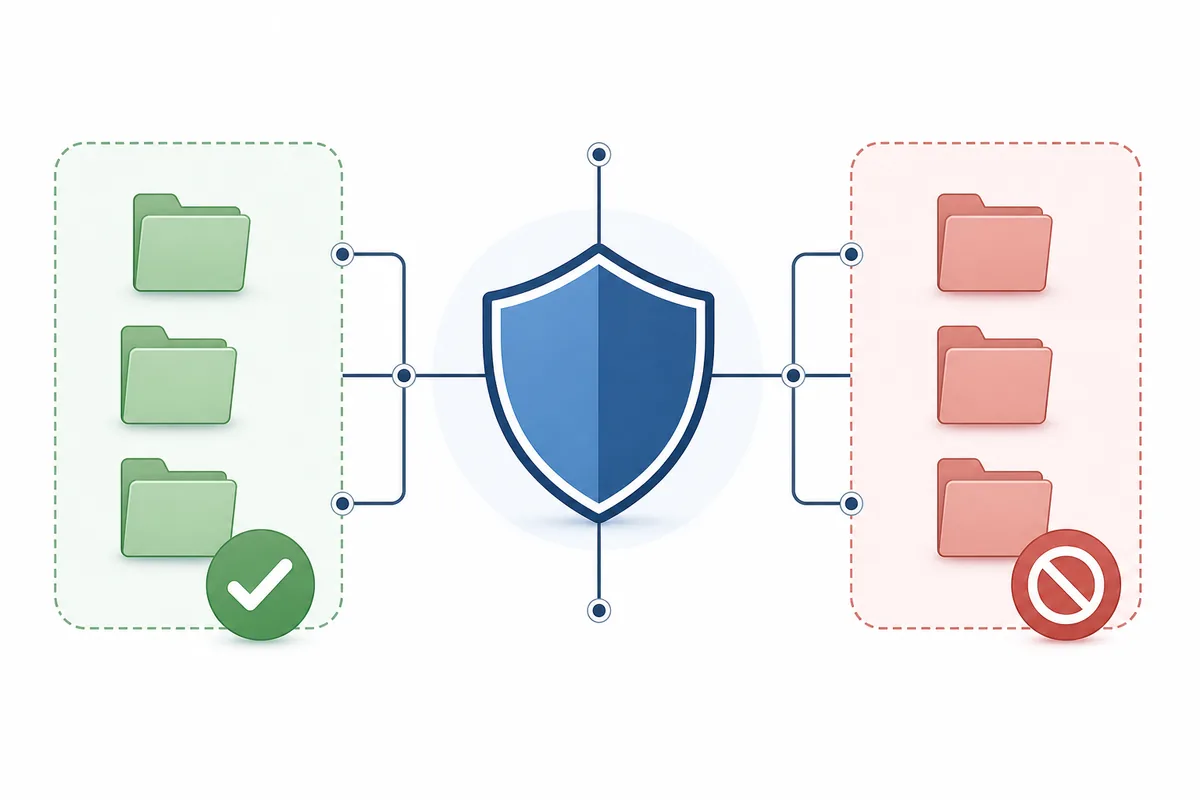
Multiplayer troubleshooting should stay inside emulator settings, game compatibility notes, room settings, network checks and save backups. It should not involve downloading or sharing copyrighted keys, firmware, ROMs, game updates, DLC or other game files. This site does not host those files. If a guide, video or room asks you to download an all-in-one package, treat that as a safety risk and verify the emulator source separately.
Use the symptom to decide where to look next. If the game never boots, multiplayer is not the first problem. If the room never appears, focus on mode, version and room settings. If the room appears but connection fails, focus on firewall, NAT, VPN and build matching. If the session starts but desyncs or crashes, compare game compatibility, save state, update version and the exact scene where the issue appears.
| Symptom | Likely layer | Best next action |
|---|---|---|
| Game fails before gameplay | Compatibility or setup | Use the crashing, keys/firmware or compatibility guide first. |
| Room does not appear | Mode or version mismatch | Confirm local wireless/LDN mode, game update and build family. |
| Join fails immediately | Network path | Check firewall prompts, VPN/tunnel choice, NAT and room instructions. |
| Session starts then desyncs | Game state or compatibility | Compare save state, game update, DLC state and a previous working build. |
| Only controller input fails | Input profile | Use the controller troubleshooting guide instead of network fixes. |
Steam Deck and Linux users should keep the test especially narrow. Confirm the AppImage or package launches normally, controller input works before joining, network permissions are not blocked by desktop mode, and the game can reach the same local wireless or room menu as the other player. If handheld performance is already unstable, reduce graphics experiments before judging multiplayer reliability.
Good notes make multiplayer problems much easier to reproduce. Record the emulator build, game version, game update, DLC state, operating system, network path, room or server name, error message, where the connection fails and whether both players can reach offline gameplay. Never include keys, firmware, ROMs, DLC, game updates or private save data in a support request.
Use official or project-maintained references for current release, setup and networking context.
Ryujinx/Ryubing multiplayer discussion usually centers on LDN or local wireless-style play. It does not mean every official online service or account-based mode will work.
LDN refers to local wireless-style networking used by compatible emulator builds and game modes. It is different from official online services.
Check that both players use the same game update, compatible build family, matching mode, room path and network settings before changing files.
Sometimes a tunnel or VPN can help a specific room path, but it can also add latency or block discovery. Test one network change at a time.
No. Multiplayer troubleshooting should not require sharing or downloading copyrighted files. Use legal setup files from your own hardware and keep network checks separate.
The same matching rules apply, but Steam Deck adds launch permissions, controller profiles, handheld performance and desktop-mode network prompts to the checklist.