Confirm the game is still running
If the image freezes or the application closes, use the crash guide first. This page assumes gameplay or menus remain visible.
Audio troubleshooting guide
If a game is running in Ryujinx but produces no sound, do not start by reinstalling everything. First confirm the operating system mixer and active output device, return Ryujinx audio settings to a clean baseline, test one wired device, and compare the same game before changing several variables. This guide separates silent output, crackling, delay and update regressions from crashes, controller problems, keys or firmware errors.
$ channel: canary
$ platforms: windows linux macos
$ source: ryubing releases
$ status: verify before download
Independent guide. No keys, firmware, ROMs, DLC or game files are hosted here.
If the image freezes or the application closes, use the crash guide first. This page assumes gameplay or menus remain visible.
Verify that Ryujinx is not muted, the application volume is not near zero, and the expected output device is selected.
Disconnect Bluetooth, HDMI, docks and virtual audio tools temporarily. Test built-in speakers or one wired headset.
Return audio volume and backend choices to a baseline. Do not delete saves, keys, firmware or the entire user folder.
Retest the same legal game, scene and Canary build, then compare another game or the previous known-working build.
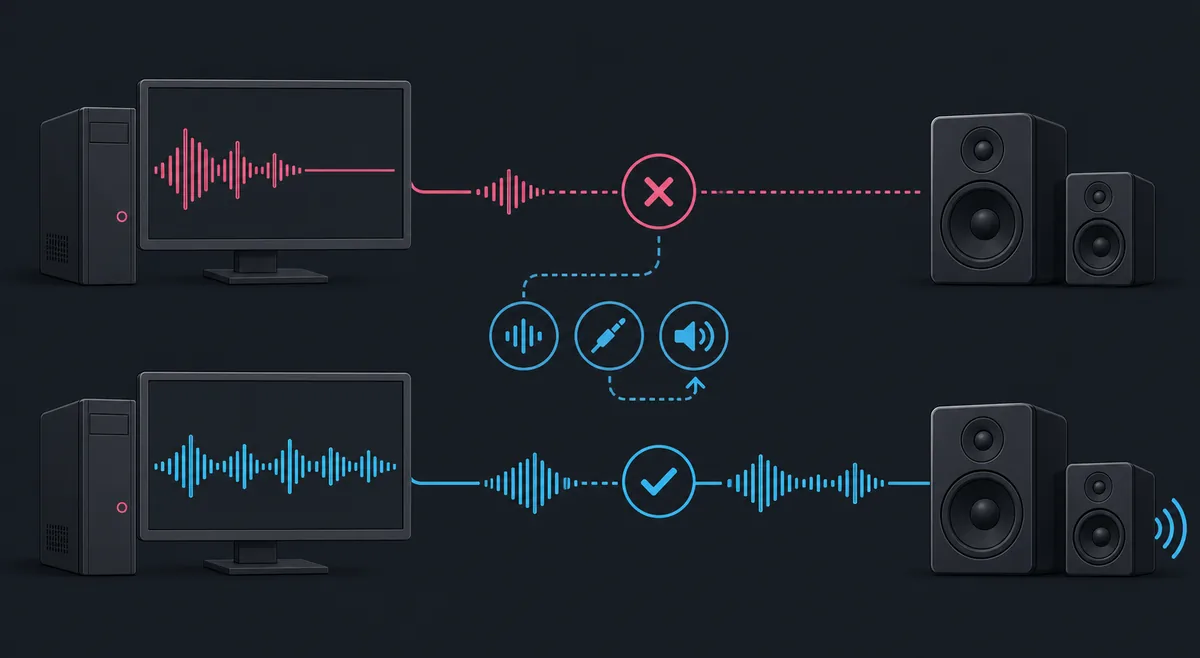
Audio can fail at the game, emulator, system mixer, selected device or physical connection. Follow the chain in order instead of changing unrelated setup files.
Begin by naming the symptom precisely. Complete silence from every game points toward the system mixer, selected output or a global Ryujinx setting. Sound in menus but not one title suggests a game-specific issue. Crackling that appears with low frame rate often reflects performance pressure rather than a dead audio device. Audio that disappears immediately after an update needs a controlled build comparison, not a random collection of fixes.
| Symptom | Most useful first check | Avoid first |
|---|---|---|
| No sound in every game | OS mixer and active output device | Replacing keys or firmware |
| Only one game is silent | Another game with the same build | Deleting the complete user folder |
| Crackling or slow audio | Frame rate, CPU load and default settings | Installing random audio packs |
| Sound vanished after update | Previous working Canary build | Changing many settings together |
Windows, Linux and macOS can route one application to a different device from the system default. Open the volume mixer while Ryujinx is producing expected sound, confirm that the application appears, remove any mute, raise its individual level and select the device you can actually hear. If a monitor, television, USB dock, Bluetooth headset or virtual cable was connected recently, the operating system may have switched outputs without changing the emulator window.
A useful test moves from software to hardware: game output, Ryujinx volume and audio configuration, operating-system mixer, selected device, then the cable or speakers. Stop as soon as the signal returns. This order creates evidence and prevents a temporary device-routing mistake from turning into a complete reinstall.
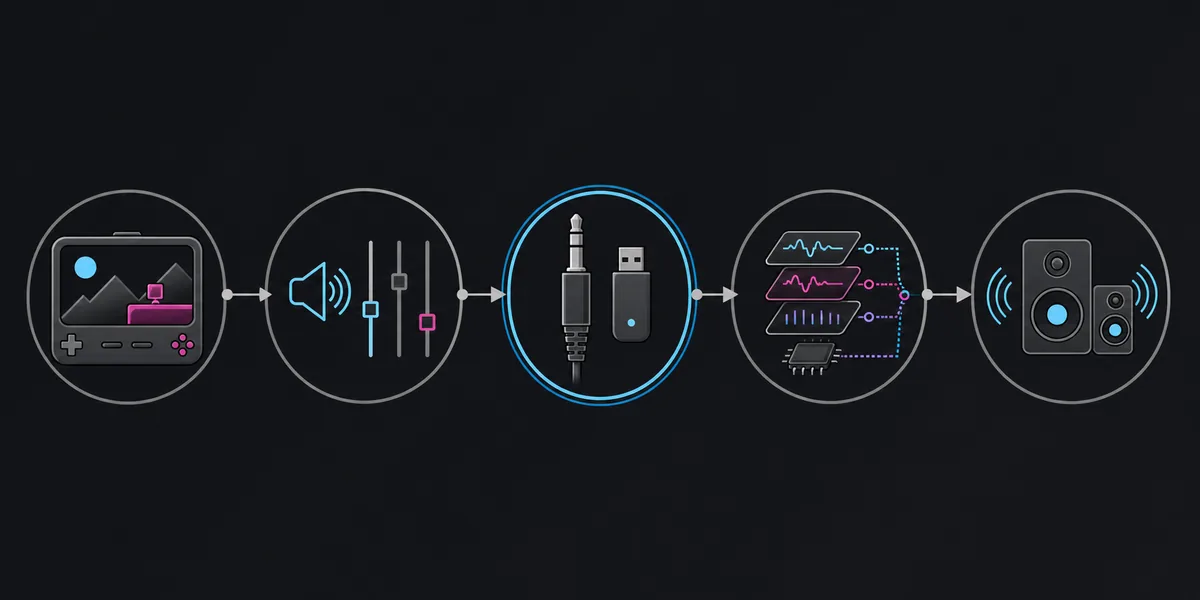
Before testing advanced changes, use a conservative baseline. Keep the emulator volume audible, remove unusual per-game overrides, and use the default or currently recommended audio choice exposed by your build. Option names can change between forks and Canary revisions, so record the original value before switching anything. Restart the application after a backend or device change because an existing audio session may keep the old route.
Wireless headsets, controllers with headphone ports, televisions, capture devices and Steam Deck docks can create several output endpoints with similar names. Bluetooth may also expose separate stereo and hands-free modes. Disconnect optional devices and test one wired output first. Reconnect devices one at a time, wait for the operating system to finish switching, then restart Ryujinx. If sound works on speakers but not through a dock or headset, the emulator is probably producing audio and the remaining problem is device routing or driver behavior.
Broken or delayed sound can be a performance symptom. If frame rate, game speed or shader compilation is unstable at the same moment, lower experimental graphics settings, disable heavy mods, return resolution scale to native and retest a repeatable scene. Close CPU-heavy background tasks and avoid judging audio during the first shader-heavy pass. If the same crackle remains while performance is stable, test another output device and compare the previous emulator build.
Canary builds change quickly. The latest version verified for this site on July 20, 2026 is 1.3.341, but a current build is not automatically the best build for every game and device. If audio stopped immediately after updating, keep your current user data backed up and run a controlled comparison with the previous archive that worked on the same computer. Use the same game, scene, settings and output device. A repeatable difference is stronger evidence than a one-time restart.
Test a second legally dumped game that previously produced reliable menu audio. If every title is silent, stay focused on global output and emulator settings. If only one game fails, compare that title without mods, cheats or custom patches, verify its update state and check compatibility reports. Do not replace keys or firmware merely because sound is missing after the game already boots; those files belong to setup and launch troubleshooting, not ordinary output routing.
The screenshot below is an older real Ryujinx interface example, not a current Canary audio-settings screen. Its value is procedural: keep the application, game state and console or log context visible so you can connect an audio change to the exact build and scene being tested. Current Ryubing menus may differ, so follow the labels in your installed build rather than copying an old screenshot literally.
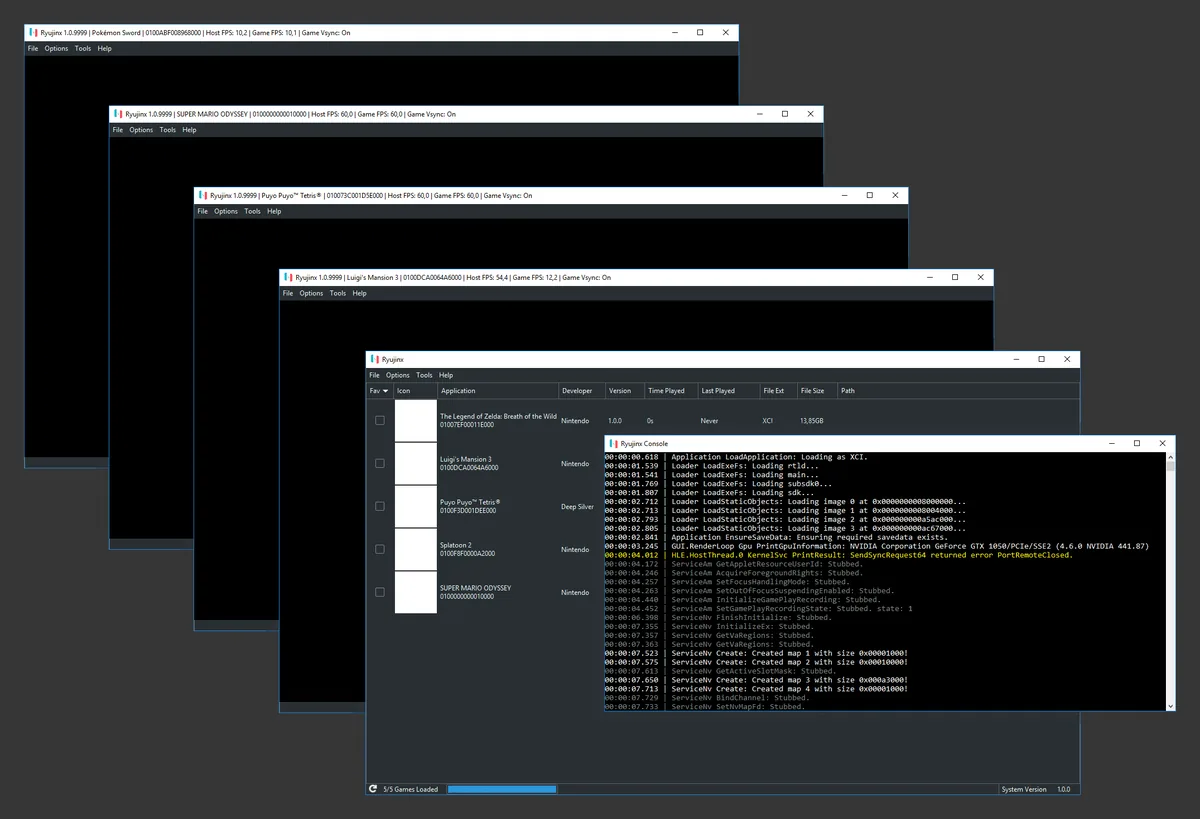
If the problem survives the baseline tests, prepare a concise report instead of listing every setting you tried. Include the exact Canary version, operating system, CPU and GPU, audio device, connection type, whether every game is affected, the first scene that reproduces the problem, and whether the previous build behaves differently. Preserve relevant logs from the failing run, but review them before sharing and remove personal paths or account information.
A running game with missing sound does not justify downloading replacement keys, firmware, ROMs, audio packs or random DLL files. This site does not host copyrighted game content or setup files. Use official Ryubing releases, your own legally dumped game data, normal operating-system drivers and a controlled backup. If the application crashes, the controller disappears or the game does not boot, switch to the dedicated guide for that symptom instead of forcing every problem into the audio workflow.
Official project documentation and the attributed real-interface image support the troubleshooting context.
The most common first checks are the operating-system mixer, the per-application volume and the active output device. Test one wired output, restart Ryujinx after device changes and then return audio settings to a baseline.
The operating system may have moved Ryujinx to a new endpoint or selected a hands-free Bluetooth profile. Choose the intended stereo, monitor or television output, close Ryujinx and reopen it.
Check whether frame rate, game speed or shader compilation is unstable at the same time. Return graphics settings to a baseline, disable heavy mods, close background workloads and compare the same scene with another output device.
Yes. If sound changed immediately after updating, compare the same game, scene, settings and device with the previous known-working archive. Back up user data and keep the two builds separate.
Not normally when the game already boots and runs. Keys and firmware belong to setup and launch troubleshooting. Missing sound is usually better investigated through the mixer, output device, audio settings, performance and build comparison.
Reinstallation is rarely the best first step. A controlled mixer, device, audio-setting and version test is faster and preserves evidence. Reinstall only after backing up data and proving the local application files are damaged.