Install the emulator from the verified release source
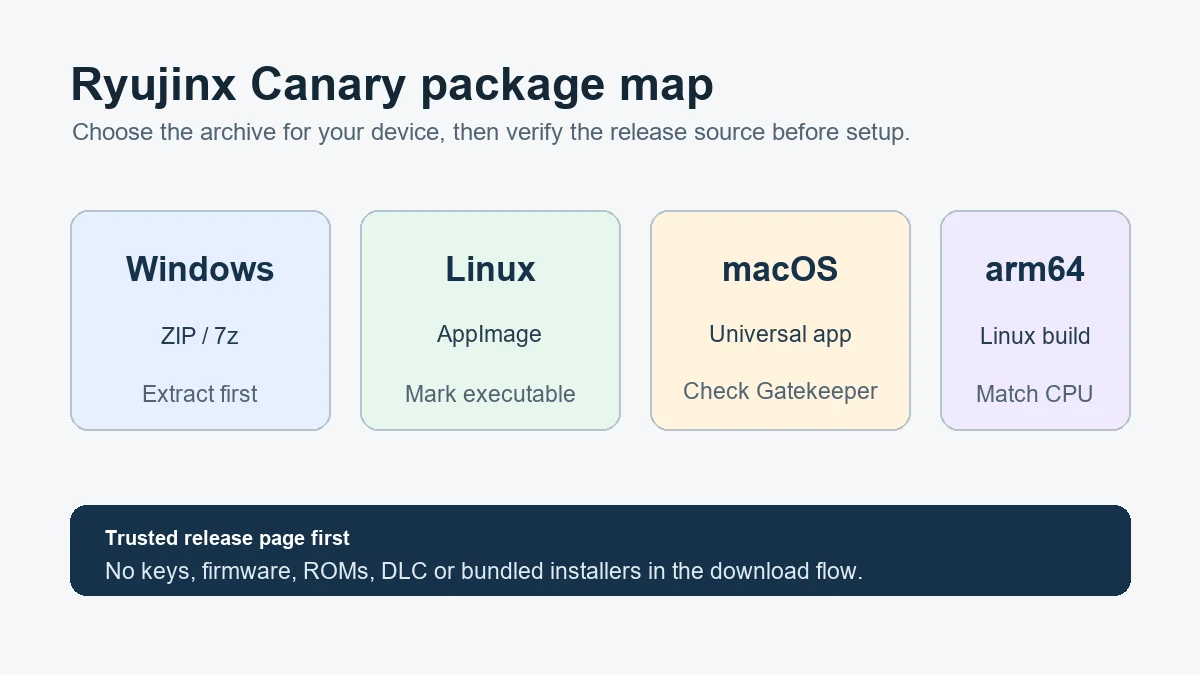
Download only the emulator package that matches your operating system. Do not accept bundles that claim to include a BIOS, keys, firmware or games.
BIOS, keys and firmware explained
Ryujinx BIOS searches usually come from a terminology mix-up: Ryujinx does not use a separate downloadable PC-style BIOS file. A normal setup instead uses your own legally dumped prod.keys and console firmware. Some front ends such as EmuDeck use a folder named bios as a container for console support files. This guide separates those terms, shows the safe setup order and explains what to check when a launcher reports a missing BIOS.
$ channel: canary
$ platforms: windows linux macos
$ source: ryubing releases
$ status: verify before download
Independent guide. No keys, firmware, ROMs, DLC or game files are hosted here.
Download only the emulator package that matches your operating system. Do not accept bundles that claim to include a BIOS, keys, firmware or games.
Use the application menu instead of guessing a path. Portable builds, launcher integrations and multiple profiles can use different folders.
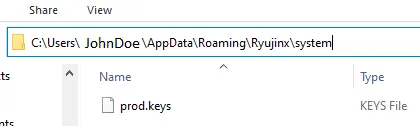
The file must be named prod.keys, not remain inside a ZIP archive and not have a hidden .txt extension.
Use firmware legally dumped from your own console and keep it reasonably aligned with your keys and game requirements.
Confirm the clean baseline before adding mods, cheats, custom caches or advanced graphics changes.
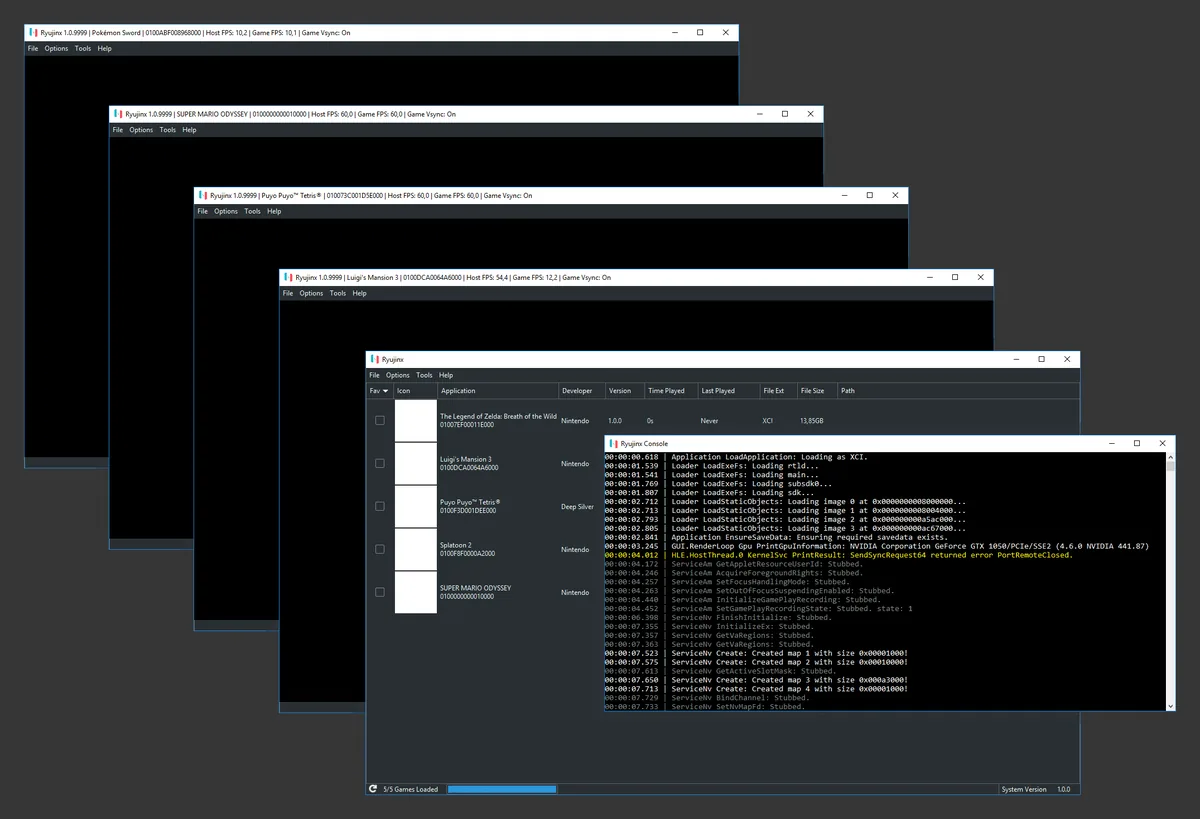
Real Ryujinx interface image from Wikimedia Commons. Ryujinx does not present a separate PC-style BIOS installer; keys and firmware are handled as distinct setup data.
No separate Ryujinx BIOS file is required. The word BIOS is often used loosely by emulator front ends and community guides, but Ryujinx itself expects two different kinds of console data: prod.keys for decryption and firmware for system components and services. Those files are not part of the emulator download and should come from hardware you own. If a guide offers a single mysterious “Ryujinx BIOS pack,” it is probably mixing several copyrighted files together or using inaccurate terminology.
| Term | What it means in Ryujinx setup | What you should do |
|---|---|---|
| BIOS | Usually a launcher folder label or generic emulator term, not one Ryujinx file | Do not search for a bundled BIOS download |
| prod.keys | Console keys used to decrypt and identify content | Dump from your own console and place in the active system folder |
| Firmware | Console system software components used by games and services | Dump legally and install through the Ryujinx firmware menu |
| Emulator build | The Ryujinx or Ryubing Canary application itself | Download separately from the verified release page |
EmuDeck organizes support files for many emulators under a shared bios directory. For Ryujinx, that label can refer to the location where the integration expects keys or related console data; it does not prove that Ryujinx uses one traditional BIOS image. Follow the current EmuDeck or launcher instructions for its folder layout, but keep the concepts separate: the launcher chooses a directory name, while Ryujinx validates prod.keys and firmware according to its own setup flow. If the launcher still shows a missing-BIOS warning, confirm the exact file it expects rather than downloading a generic pack.
prod.keys and firmware solve different parts of setup. A valid prod.keys file allows Ryujinx to understand protected content metadata. Firmware provides system modules and services expected by some titles. Replacing one does not automatically fix the other. A missing-key message should be handled with the prod.keys troubleshooting guide; a firmware installation or compatibility problem belongs in the keys and firmware guide. Calling both items a BIOS hides the symptom and makes troubleshooting less reliable.
A website can safely link to the emulator's official release page, but it should not host or bundle console keys, firmware, games, updates or DLC. This page therefore provides no BIOS pack and no copyrighted setup files. The Canary release checked for this update remains 1.3.341, and the site keeps emulator download guidance separate from console data. If a mirror advertises an all-in-one archive, avoid it: you cannot easily verify what was modified, whether the files belong together or whether extra software was added.
The most common problem is not a missing BIOS image. It is usually the wrong active data folder, a ZIP archive that was never extracted, a hidden prod.keys.txt extension, an outdated or incompatible dump, or a launcher checking a different path from the Ryujinx build you opened. Use the emulator menu to reveal the active folder, close every running Ryujinx process, correct one issue and restart the same build. Do not delete saves or replace every setup file at once, because that removes useful evidence.
A Canary update does not create a need for a traditional BIOS file. New games or newer firmware requirements may mean that your legally dumped keys and firmware need to be refreshed from your own console, but the correct decision depends on the exact error and title. Keep a backup of the previous working emulator build and user data. Test the same game without mods before changing keys, firmware and graphics settings together. The latest release checked on August 16, 2026 remains Canary 1.3.341.
If Ryujinx says prod.keys is missing, use the dedicated prod.keys-not-found checks. If keys are detected but firmware installation fails, continue with the keys and firmware guide. If setup completes but one game does not boot, compare game compatibility, updates and mods. If the application closes or stays on a black screen, use crash troubleshooting. A launcher-only BIOS warning should be checked against that launcher's current documentation and configured path. This symptom-based route is safer and faster than downloading replacement packs.
Game files are separate from BIOS, keys, firmware and the emulator application. This site does not host or link to ROMs, NSP, XCI, game updates or DLC. Add only games and updates you have lawfully dumped, keep an untouched backup, and test one clean title before adding modifications. A game file that fails to load is not evidence that you need a BIOS download.
Official documentation supports the setup terminology and safe file boundaries used in this guide.
No separate Ryujinx BIOS image is required. Use your own legally dumped prod.keys and firmware, then follow the official setup flow.
EmuDeck uses a shared bios directory to organize support files for many emulators. For Ryujinx, verify whether it expects keys or related console data in that path rather than searching for one BIOS file.
No. prod.keys contains console keys used to decrypt and identify content. Firmware provides system components. Neither should be described as a downloadable all-in-one BIOS pack.
No. This site does not host or link to BIOS packs, prod.keys, firmware, ROMs, games, updates or DLC. Use files legally dumped from hardware you own.
No traditional BIOS is required. A newer game may require newer legally dumped keys or firmware, but diagnose the exact message before replacing setup data.
Open the active Ryujinx data folder from the emulator menu and place your own prod.keys in its system folder. If a launcher uses another bios directory, follow its current integration documentation and confirm the configured path.