Record what is still visible
Note whether the Ryujinx window opens, whether menus appear, whether audio continues and whether the problem affects one game or every game. That split is more useful than changing several settings at once.
Display troubleshooting guide
A Ryujinx black screen can mean a driver path, a display mode, a shader warm-up, a game-specific render failure or a Canary regression. This guide separates those symptoms and gives you one safe check at a time, so you can keep a working profile and know when to capture a log.
$ symptom: window or game is black
$ split: picture, sound, menu
$ change: one graphics variable
$ result: keep, roll back, or log
A black screen is a symptom, not a single cause. Keep the game, build, save point and profile fixed while testing.
Note whether the Ryujinx window opens, whether menus appear, whether audio continues and whether the problem affects one game or every game. That split is more useful than changing several settings at once.
Keep the current build, game update, save point, resolution scale and graphics profile unchanged. Close overlays and background capture tools before the first repeatable test.
Update the graphics driver from the hardware vendor and confirm that a laptop is using the intended discrete GPU. Hybrid graphics can make one backend fail while another still opens.
Use Vulkan when the GPU supports it, then compare OpenGL with the same scale and game. If the image returns only in windowed mode, test fullscreen after the render path is stable.
If the screen remains black, restore the previous value, save the log and compare a known-working build. A controlled rollback tells you more than an untracked collection of tweaks.
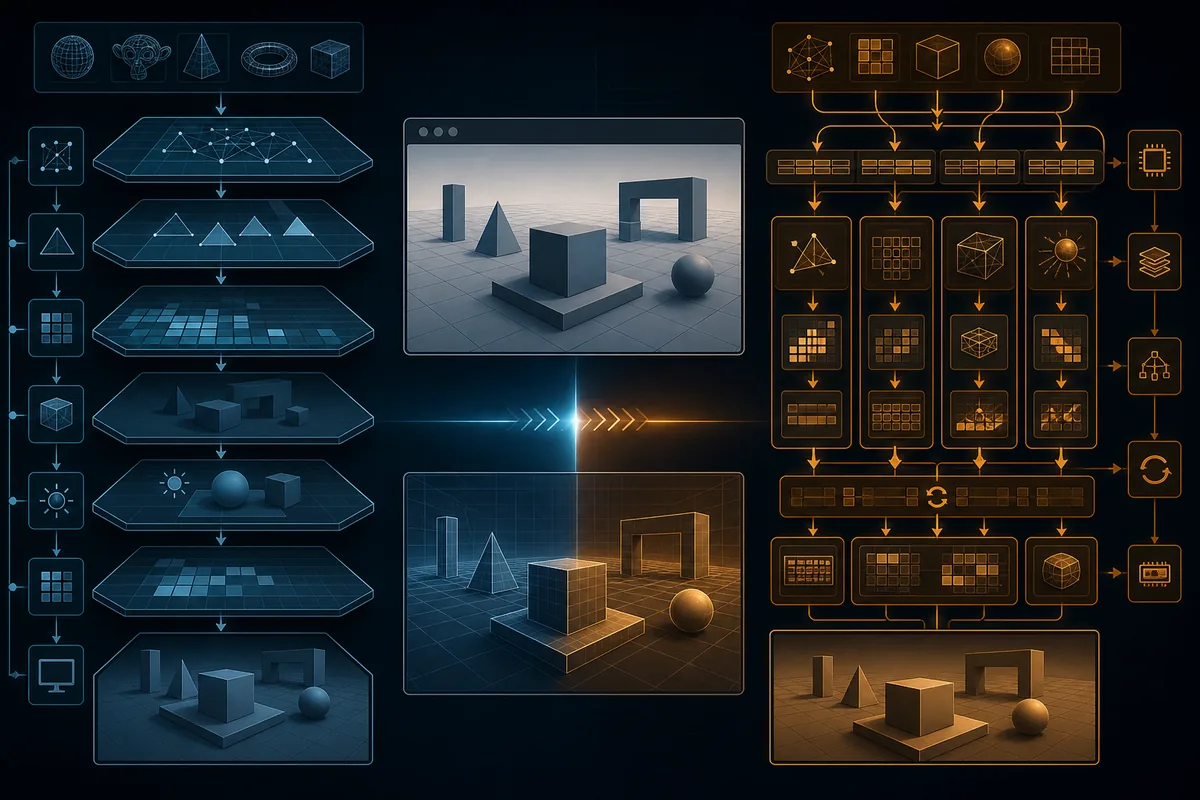
This existing site illustration shows a controlled backend comparison. It is not a benchmark or a real Ryujinx screenshot.
Start by deciding whether the emulator window itself is black, whether only the game image is black, or whether the image is black while sound continues. Then repeat the same scene with the default profile, native resolution and a current graphics driver. A black screen that appears after a Canary update points toward a build or configuration change. A black screen in one title points toward a game update, shader path or title-specific rendering issue. A black screen in every title points toward the driver, GPU selection, backend, display mode or damaged configuration. Do not download replacement keys, firmware or game files to solve a rendering symptom; those files are outside this guide and can introduce a second problem.
A useful Ryujinx black screen fix begins with a small symptom map. Look at the emulator window, the game image, the menu, the cursor and the audio independently. If moving the mouse briefly reveals the image, the issue may involve a compositor or fullscreen presentation path rather than missing game data. If the menu is visible but the game view is black, the emulator is running and the next check belongs to graphics rendering. If the entire window closes, use the crashing guide instead. If the image is visible but the frame rate is poor, use the FPS guide after the display path is restored.
| Observed pattern | First hypothesis | Next controlled check |
|---|---|---|
| Window opens and the menu is black | Driver, GPU selection or configuration | Use the default profile and verify the active GPU |
| Menu is visible but a game is black | Backend, shader or game-specific render path | Test the same title with one backend change |
| Black image with working sound | Presentation or graphics pipeline | Try windowed mode, then compare Vulkan and OpenGL |
| Only one title is affected | Game update, mod or title cache | Disable per-game changes and test another title |
| Problem starts after an update | Canary regression or changed setting | Compare the previous working archive without deleting saves |
Ryujinx documentation treats current graphics drivers and a supported OpenGL or Vulkan implementation as prerequisites. On Windows laptops, update both the integrated and discrete GPU drivers, then confirm in the operating system graphics settings that Ryujinx is allowed to use the intended GPU. On Linux or Steam Deck, keep the active Mesa or vendor driver fixed while testing. On macOS, avoid mixing a newly changed display scaling option with a backend test. These checks matter because a window can open successfully while the game surface fails to present.
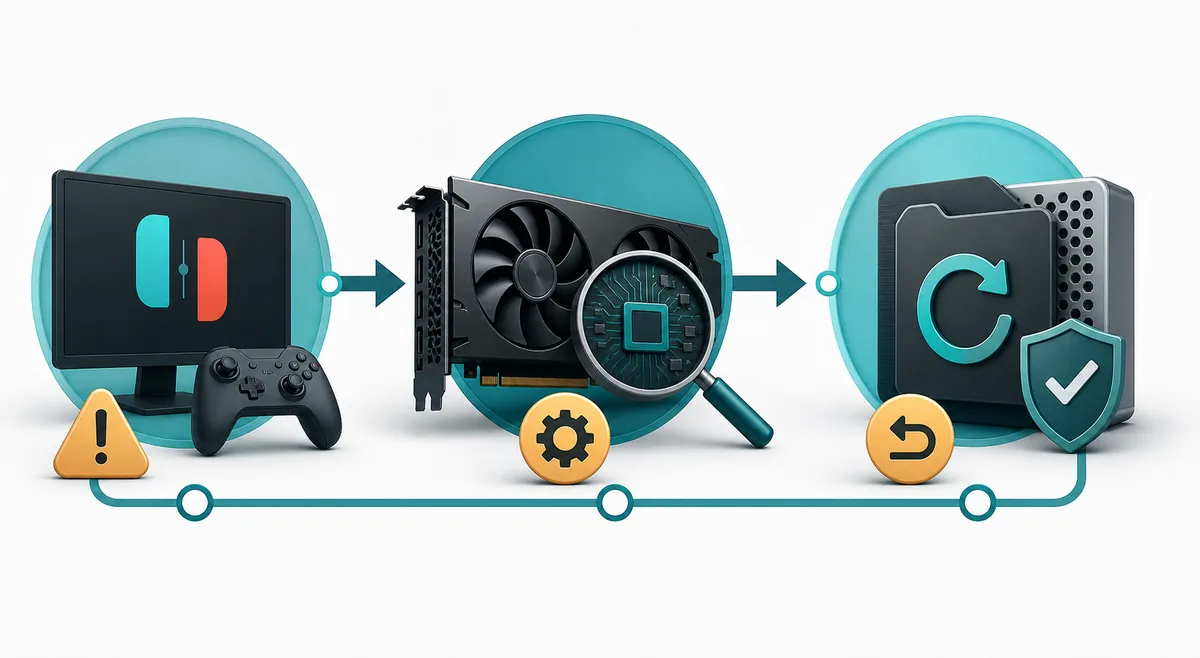
The official FAQ recommends default settings and Vulkan when the GPU supports it, but a recommendation is not a guarantee for every driver or game. Record the baseline first. Then change only the graphics backend and run the same route. If Vulkan stays black while OpenGL renders, keep the working path and investigate the Vulkan driver later. If both backends are black on the first run but the same route becomes visible after a restart, allow shader compilation and persistent translation data to warm up before judging the result. If the image is still black after two comparable passes, move on to display mode, game update, mod and configuration checks rather than repeatedly clearing caches.
| Test variable | Keep fixed | Interpretation |
|---|---|---|
| Vulkan versus OpenGL | Game update, save point and scale | A difference points to a driver or backend path |
| First run versus warm run | Same route and build | A one-time hitch may be shader work, not a permanent black screen |
| Windowed versus fullscreen | Backend and resolution | A difference points to presentation or compositor behavior |
| Cache after a backup | Known-working profile | Only clear a cache when the symptom is repeatable and the rollback path is clear |

When the Ryujinx game black screen affects one title, start with the title's own update, mod and shader history. Disable a graphics mod temporarily, keep the emulator defaults, and test a second legally dumped title. If the second title works, the emulator-wide path is less likely to be the cause. On Steam Deck, compare Desktop Mode and Game Mode with the same build, backend and display scale. A community report may describe a version-specific workaround, but an old post cannot prove that the same workaround is safe for a current Canary build. Treat it as a clue, then reproduce the symptom with a reversible setting and keep the working profile.
If the black screen began after a setting change, reverse that exact change first. If you no longer know what changed, back up the Ryujinx configuration and saves before testing a clean profile. A reset is a diagnostic boundary, not a reason to erase a working setup. Ryujinx documentation says logging should remain enabled at its default level for support and that debug logs should not be enabled unless staff request them. Capture the ordinary log after a repeatable failure, write down the build and backend, and compare a previous working archive if the issue began after an update. This creates evidence for a regression report and keeps the next change reversible.
Several popular suggestions can make a black screen harder to diagnose. Deleting every cache, changing resolution scale, installing a random graphics driver and adding an unverified patch at the same time removes the comparison point. Replacing prod.keys or firmware cannot repair a renderer that already shows the emulator menu. Reinstalling may also remove a useful log or change the profile without proving why the image failed. Use a short checklist, keep one known-good copy and stop when a change has answered the question. If the image returns, do not immediately stack more tweaks; run the same scene again and confirm that the fix survives a restart.
| Tempting action | Why it misleads | Safer alternative |
|---|---|---|
| Change five settings together | The cause and fix cannot be separated | Change one graphics or display variable |
| Download replacement setup files | It adds legal and security risk without testing rendering | Use your existing verified setup and official guidance |
| Clear every cache immediately | It destroys the warm-versus-cold comparison | Back up first and clear only for a repeatable cache symptom |
| Assume an old forum fix is current | Canary and drivers change over time | Reproduce it reversibly and record the build |
Use this sequence when you need a practical next action. First ask whether the emulator window stays open. If it closes, move to the crashing guide. If it stays open, ask whether audio or menus remain. If neither is visible, verify GPU selection, driver health and the configuration path. If menus work but a game is black, test windowed mode and one backend with the scale fixed. If one title fails, disable its mods and compare a second title. If every title fails after a Canary change, preserve the log and compare the previous working archive. The result is not a promise that one backend is universally best; it is a way to avoid guessing.
These references support the driver, default-setting, logging and legal setup boundaries used in this guide.
A black image with working sound usually means the emulator is running but the graphics or presentation path is failing. Keep the scale fixed, test windowed mode, then compare Vulkan and OpenGL with the same title and driver.
No. If the emulator menu or audio works, the symptom is more likely a display, backend, driver, shader or title-specific rendering issue. Use only legally dumped setup files and do not download replacement keys to test graphics.
The official FAQ recommends default settings and Vulkan when supported, but a driver or game can behave differently. Test Vulkan first, then OpenGL as a controlled comparison and keep the path that renders reliably on your system.
A single affected game points toward its update, a mod, a title-specific cache or a game rendering path. Disable per-game changes, test a second title and keep the emulator-wide profile unchanged.
A first run can pause while shaders or persistent translation data warm up, but a repeatable black image after comparable warm passes needs a backend, display, driver or game check. Do not clear every cache before making a backup.
Compare Desktop Mode and Game Mode with the same build, backend and scale. Record whether moving the cursor changes the image, and use a reversible display or backend test before changing multiple compatibility settings.
Reinstalling is a late diagnostic step. First back up saves and configuration, verify the driver and GPU path, test one backend or display mode, and capture the ordinary log. A previous working archive can reveal a Canary regression without erasing evidence.
Include the build, game update, platform, driver, backend, display mode, resolution scale, whether audio and menus work, the exact scene, a repeatable sequence and an ordinary log. Do not enable debug logging unless support asks for it.